Mastering Burp Suite Vulnerability Scanner

- Category: CTI
- Source article: https://medium.com/@1200km/mastering-burp-suite-vulnerability-scanner-019ed82c8bac
- Published: 2024-11-11
- Preserved media: 14 image(s), including cover images, screenshots, diagrams, and infographics where present.
- Preserved technical blocks: 0 code/configuration block(s).
Ecosystem Fit
This page mirrors the original Medium article into the 1200km.com Docusaurus ecosystem. The original article flow, images, screenshots, infographics, and technical blocks are preserved from the export.
From configuration to result analysis, discover how to leverage Burp Suite’s automatic scanner for faster and more effective web security audits.
Introduction:
In the dynamic world of web application security, efficiency and thoroughness are paramount. Burp Suite, a staple among penetration testers, offers a suite of tools designed to enhance the security testing process. Among these tools, the automatic vulnerability scanner stands out as a powerful component that simplifies the detection of security vulnerabilities. This guide will delve into how to effectively utilize Burp Suite’s automatic scanner to conduct comprehensive security assessments.
With its robust capabilities, Burp Suite automates the tedious and time-consuming tasks of vulnerability scanning, allowing testers to focus on more complex aspects of security testing. Whether you are a novice looking to understand the basics or an experienced professional aiming to refine your skills, this post will equip you with the knowledge to configure, execute, and interpret the results from Burp Suite’s automated scans. By integrating this tool into your security arsenal, you can ensure your web applications are rigorously tested and fortified against potential threats.
Legal Use Disclaimer
The information and tools provided in this guide are for educational and authorized professional use only. You must obtain explicit, written consent from the rightful owner before engaging in any form of penetration testing or security assessments on systems, networks, or web interfaces. Unauthorized use of these techniques and tools can result in legal consequences, including criminal and civil penalties. Use responsibly and ethically within the bounds of the law.
Tool Overview: Burp Suite Automatic Vulnerability Scanner
**What is Burp Suite?**Burp Suite is a comprehensive web application security testing platform developed by PortSwigger. It is designed to provide a variety of tools that allow security professionals to perform extensive testing of web applications. The platform is widely recognized for its ability to manually and automatically detect security vulnerabilities.
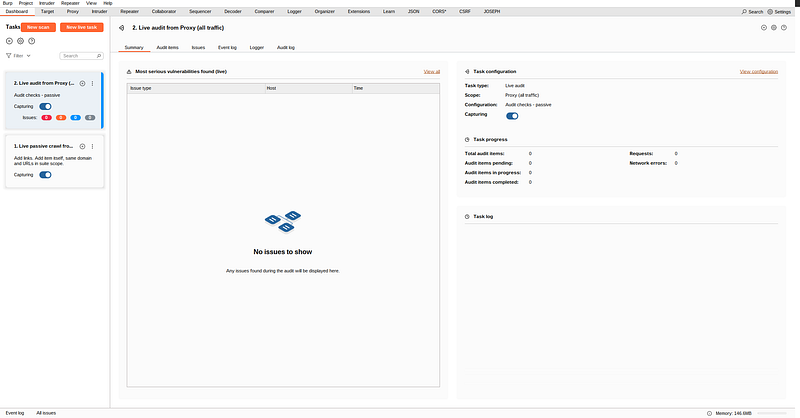
Key Components of Burp Suite:
-
**Proxy Server:**Allows interception of traffic between your browser and the target application for detailed inspection and modification.
-
**Scanner:**Automated vulnerability scanner for detecting security weaknesses within web applications.
-
**Intruder:**A powerful tool for carrying out attacks against web apps, such as brute forcing, custom query attacks, and more.
-
**Repeater:**Facilitates the manual modification and resending of individual HTTP requests.
-
**Sequencer:**Analyzes the quality of randomness in an application’s session tokens.
-
**Decoder:**A tool for decoding and encoding data into various formats.
**Focus on Automatic Vulnerability Scanner:**The automatic vulnerability scanner is a highlight of Burp Suite, designed to efficiently scan web applications for vulnerabilities. It performs both passive and active scans to provide a thorough examination of possible security issues.
Features of the Automatic Scanner:
-
**Comprehensive Scanning:**Combines both passive analysis as traffic passes through the proxy and active probing of known security vulnerabilities.
-
**Configurable Levels of Testing:**Allows detailed control over the depth and breadth of tests conducted, which helps in managing testing speed and impact on the application.
-
**Detailed Reporting:**Generates reports that categorize found vulnerabilities by type and severity, offering detailed evidence and remediation advice.
**Why Use Burp Suite’s Automatic Scanner?**Using the automatic scanner can significantly streamline the vulnerability assessment process. It provides a fast, efficient method to identify weaknesses, which can then be examined in detail using Burp Suite’s other tools. This capability makes it an invaluable part of the security testing toolkit, especially in environments where rapid testing and retesting are required.
Running and Using the Automatic Vulnerability Scanner in Burp Suite
Setting Up and Starting a Scan:
Configure the Proxy:
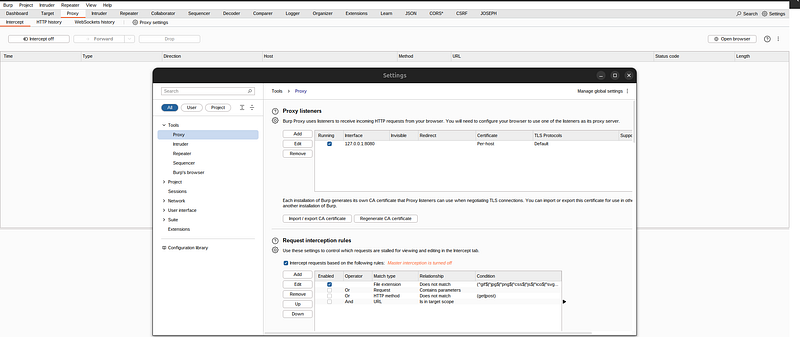
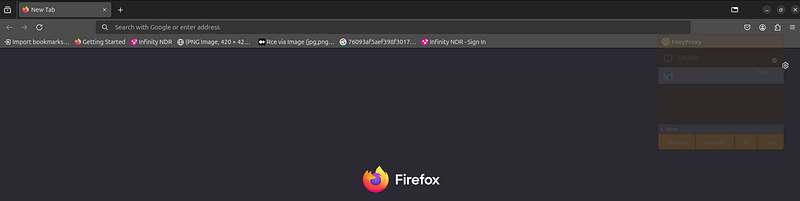
- Ensure Burp Suite is set as the proxy server in your browser’s network settings. In your browser I strongly recommended to use “FoxyProxy” extension.
-
This allows all web traffic to flow through Burp Suite, enabling it to capture and manipulate requests and responses.
-
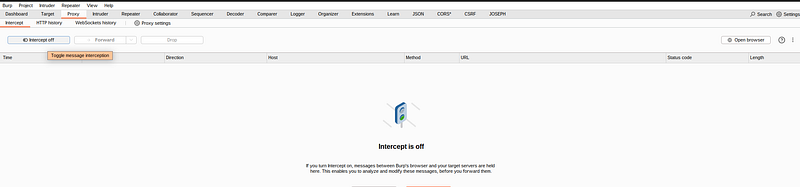
Access theProxytab and ensure theInterceptis on “Off” mode so that traffic flows without interruption while you set up your scan.
Define the Scope:
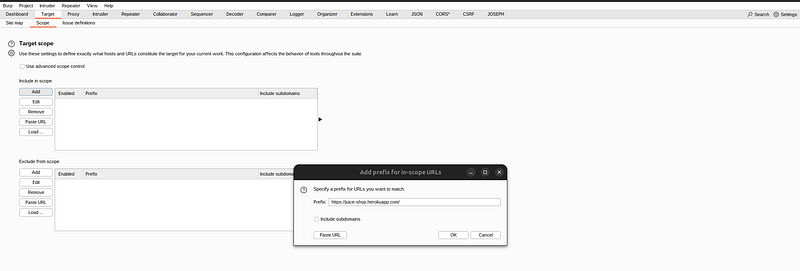
-
Navigate to theTargettab, right-click on the domain you want to test, and choose “Add to scope” if it’s not already defined. This ensures that Burp Scanner focuses only on your target, avoiding external sites.
-
Confirm scope configuration in theScopetab underTargetto ensure accuracy.
Start the Scan:
- Go to theDashboardtab and click on “New Scan.”
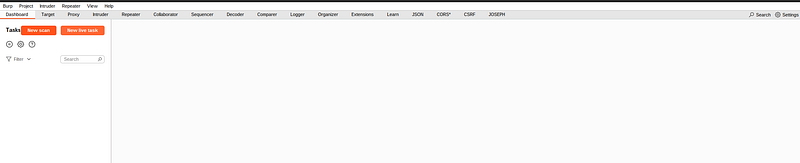
- Select eitherCrawl and Auditfor a comprehensive scan orAudit selected itemsif you want to scan specific requests you’ve previously captured or modified.
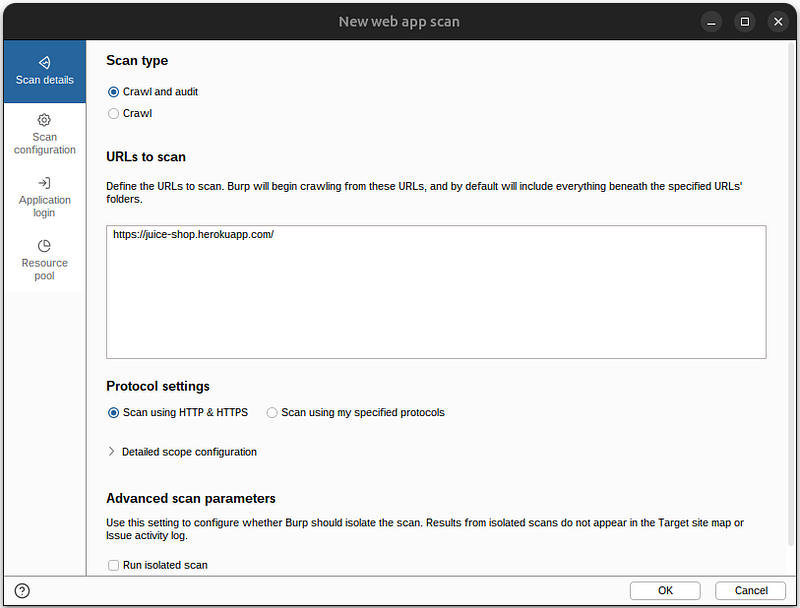
- Configure the scan settings by choosing the types of crawl and audit functions to perform. You can customize settings such as the number of concurrent requests, the types of data to submit in forms, and the handling of new cookies.
Configure Scan Details:
-
Under theNew Scansetup, detail any specific cookies, headers, or request modifications that your scan should use. This step is crucial for applications that require authentication or custom headers to access.
-
Use theCrawl Strategyoptions to determine how aggressively Burp Suite explores application content. Adjust theAudit Speedto control the balance between speed and server impact.
Burp Suite’s vulnerability scanner, you can choose from different scan configurations, each designed to suit various scanning needs and scenarios. These configurations — light, balanced, deep, and fast — affect how thoroughly the scanner probes the target application and the load it imposes on the server. Here’s a detailed look at each mode:
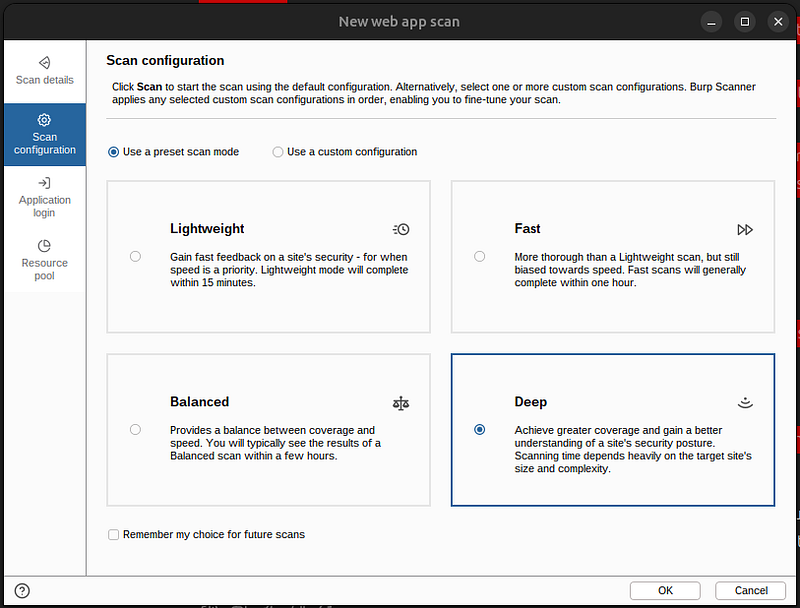
Light Scan
-
**Purpose:**The light scan is designed for minimal impact on the target’s performance. It is best used when the target system is known to be sensitive to higher loads or when you need a quick overview without a detailed vulnerability assessment.
-
**Characteristics:**This mode uses fewer requests and less aggressive methods. It generally avoids intensive tests that are likely to cause issues or noticeable performance degradation on the target.
-
**Use Case:**Ideal for an initial quick check of a production system to identify glaring security issues without affecting the system’s availability or performance.
Balanced Scan
-
**Purpose:**As the name suggests, this mode offers a balance between thoroughness and performance impact. It’s designed to be a good default setting for most use cases.
-
**Characteristics:**The balanced scan performs a more comprehensive examination than the light scan, but it does not delve as deeply as the deep scan. It carefully manages the trade-off between speed and load on the network or application.
-
**Use Case:**Suitable for regular security diagnostics where you need a thorough assessment but cannot afford significant system impact. This is the go-to for routine scans in development or staging environments.
Deep Scan
-
**Purpose:**The deep scan is meant for the most exhaustive vulnerability assessment when maximum coverage is required, and the performance impact is a secondary concern.
-
**Characteristics:**This mode is the most resource-intensive, utilizing a wide array of tests and attempting various inputs to uncover as many issues as possible. It can potentially impact system performance due to the high number of requests and complex attack simulations.
-
**Use Case:**Best used in secure environments like pre-production or testing environments where you can afford downtime or performance degradation. It’s ideal when preparing for security certifications or audits.
Fast Scan
-
**Purpose:**The fast scan focuses on speed, making it suitable for situations where time is critical. It scans quickly to give a rapid insight into the security posture of an application.
-
**Characteristics:**It prioritizes speed over thoroughness, executing only the fastest tests. While it can identify obvious vulnerabilities, it may miss deeper, more subtle issues.
-
**Use Case:**Useful for repeated scans during a rapid development phase when immediate feedback is necessary. It’s also beneficial for initial scans in a larger security assessment process to quickly identify high-level vulnerabilities.
Choosing the Right Mode
Selecting the right scan configuration depends on your specific needs:
-
**Risk Tolerance:**How critical is the application? How sensitive is the data it handles?
-
**Environment:**Are you scanning a production system or a test environment?
-
**Objective:**Is the goal to get a quick overview or an exhaustive examination?
-
**Resource Availability:**How much impact on performance can the target system handle during the scan?
Monitoring and Analyzing Results:
-
Monitor the Scan:
-
Track the progress in theDashboardwhere Burp Suite displays real-time information about requests made, issues found, and the overall progress of the scan.
-
Use the live scanning report to review preliminary findings as they are identified.
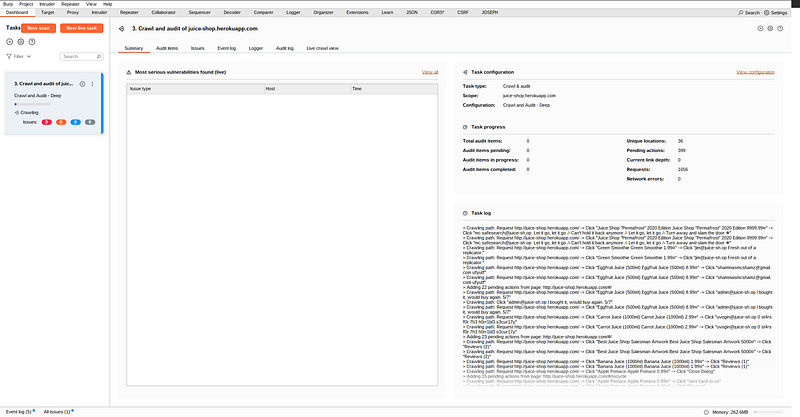
Analyze the Vulnerabilities:
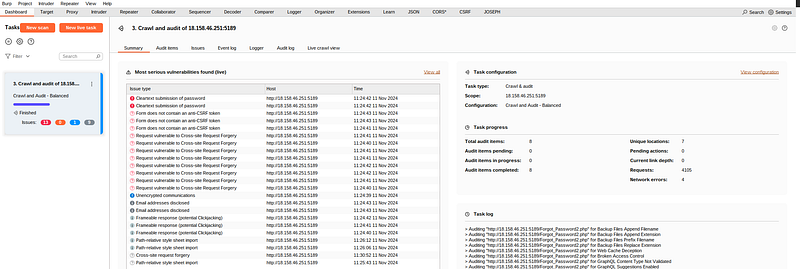
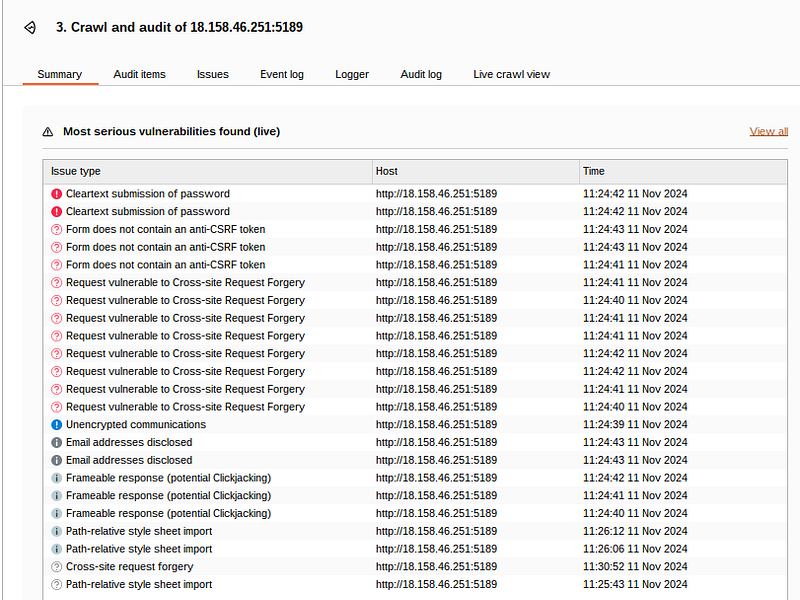
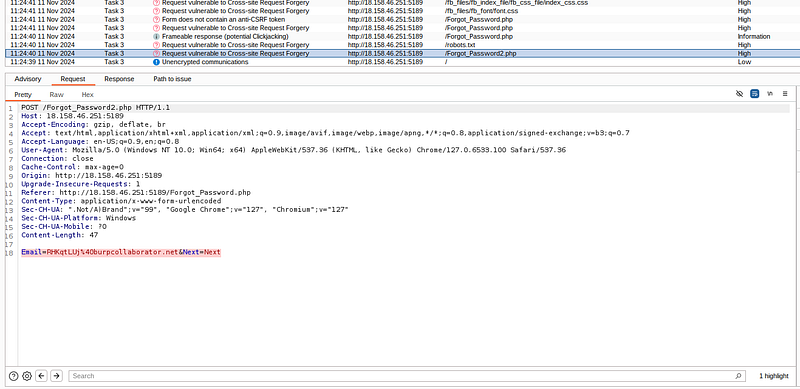
23 vulnerabilities found(13 critical)
-
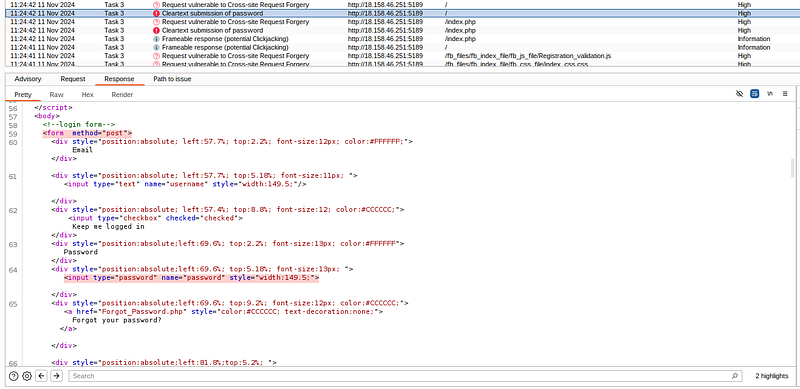
After the scan completes, review the results under theIssue Activitytab. Here, each identified vulnerability will be listed with its type, path, severity, and confidence rating.
-
Click on an issue to see detailed information, including a description, the affected URL, the request/response that revealed the issue, and remediation advice.
-
Review and Report:
-
Utilize the detailed analysis provided by Burp Suite to prioritize issues based on their severity and the specific security needs of your application.
-
Export the findings using the reporting tools in Burp Suite for compliance, auditing, or further analysis.
Best Practices for Using the Scanner:
-
Always ensure that you have legal permission to scan the target application.
-
Regularly update Burp Suite to take advantage of the latest security tests and vulnerability definitions.
-
Validate critical findings manually to confirm vulnerabilities and understand their impact.