Mastering Hydra: The Ultimate Guide to Network Logon Cracking

- Category: CTI
- Source article: https://medium.com/@1200km/mastering-hydra-the-ultimate-guide-to-network-logon-cracking-182579dbaed1
- Published: 2024-11-01
- Preserved media: 5 image(s), including cover images, screenshots, diagrams, and infographics where present.
- Preserved technical blocks: 30 code/configuration block(s).
Ecosystem Fit
This page mirrors the original Medium article into the 1200km.com Docusaurus ecosystem. The original article flow, images, screenshots, infographics, and technical blocks are preserved from the export.
Unlocking the Gates of Network Security: An In-Depth Exploration into Mastering Hydra for Advanced Logon Cracking, Penetration Testing, and Ensuring System Integrity in the Digital Age
Introduction
Password-based authentication is still one of the most common entry points into networks, servers, databases, and remote administration services. Even in modern environments with firewalls, VPNs, endpoint protection, and monitoring systems, weak credentials remain a critical security risk. A single reused, default, or poorly chosen password can expose FTP, SSH, RDP, email, database, or web services to unauthorized access.
This is whereHydra, also known asTHC-Hydra, becomes an important tool for security professionals.
Hydra is one of the most widely used network logon testing tools in penetration testing. It allows analysts to assess the strength of authentication mechanisms across many protocols by performing controlled dictionary-based or brute-force login attempts. When used correctly and legally, Hydra helps identify weak credentials before attackers do.
This guide provides a practical, protocol-focused walkthrough of Hydra: how it works, how to install it, how its command syntax is structured, and how it can be used against common services such as FTP, Telnet, SMTP, POP3, IMAP, SNMP, SOCKS5, RDP, and database systems.
The goal is not to promote unauthorized access. The goal is to understand how credential attacks work in real environments, how attackers abuse weak authentication, and how defenders and penetration testers can validate password security, reduce exposure, and improve system hardening.
All examples in this article are intended forauthorized penetration testing, lab environments, and defensive security validation only.
Table of Contents
-
Introduction
-
Overview of Hydra
-
Installation and Setup of Hydra** **Installing Hydra on Linux Installing Hydra on Windows Installing Hydra on macOS Configuration Essentials Testing the Installation
-
Core Features and Functionalities
-
Hydra Command Syntax
-
Basic Hydra Usage Example
-
Practical Usage with real examples
-
General Network Protocols** **FTP Telnet SMTP POP3 IMAP SNMP v1, v2, v3 SOCKS5
-
Remote Administration Protocols** **RDP SSH
-
Database Protocols
-
Testing and Security Considerations
Overview of Hydra
Hydra, also known asTHC-Hydra, is a powerful and widely-used tool for network logon cracking. It is capable of rapidly guessing and applying numerous password combinations to uncover authentication credentials across a variety of protocols, such as FTP, HTTP, IMAP, databases, and more. Hydra works by employing brute-force or dictionary attacks, where it systematically checks all possible passwords by trying hundreds or thousands of combinations per minute. The primary use of Hydra is in penetration testing scenarios where security professionals assess the strength of passwords on network services and applications to identify potential vulnerabilities that could be exploited by malicious actors.
Legal Use Disclaimer
This guide is provided for educational and informational purposes only. The techniques, methods, or tools discussed within this content, including any offensive security or penetration testing strategies, should only be applied to networks and systems where explicit permission has been granted by the appropriate owner(s). Unauthorized use of these practices on systems without proper authorization is both illegal and unethical, potentially resulting in criminal charges, civil liabilities, and severe consequences.
Installation and Setup of Hydra
Installing Hydra on Various Operating Systems
Linux:
Hydra is most commonly used on Linux, and it is available in the repositories of most major distributions. You can install Hydra on Linux using the package manager. For Debian-based systems like Ubuntu, use the following command:
sudo apt-
get
 install hydra
For Red Hat-based systems like Fedora or CentOS, you can use:
sudo dnf install hydra
Windows:
Hydra can be run on Windows, but it typically requires the use of Cygwin, a Linux-like environment for Windows. Here are the steps to install Cygwin and Hydra:
-
Download and install Cygwin from the official site.
-
During the installation, select the
hydrapackage from the list of packages. -
Complete the installation, and you can run Hydra from the Cygwin terminal.
macOS:
On macOS, Hydra can be installed using Homebrew, which is a popular package manager for macOS. If Homebrew is not already installed, you can install it first by following the instructions on the Homebrew website. Then, install Hydra by running:
brew install hydra
Configuration Essentials
**Dependencies:**Hydra may require additional libraries or dependencies depending on what protocols you plan to target. Common dependencies include:
-
OpenSSL: Required for protocols that use SSL.
-
libssh: Needed for SSH protocol support.
-
libpcre: Provides support for regular expressions.
Ensure these are installed on your system. Most package managers will handle these dependencies automatically, but if you are compiling from source, you may need to install them manually.
**Basic Configuration:**After installation, Hydra does not typically require extensive configuration to start using it. However, it is crucial to update your system and Hydra to ensure you have the latest security patches and features. For most users, running Hydra is straightforward after installation, but here are a few things to consider:
-
**Update Hydra:**Regularly check for and install updates to Hydra and its dependencies.
-
**Network Settings:**Ensure your network settings allow for the type of traffic generated by Hydra, particularly if operating on a network with strict firewall rules or intrusion detection systems.
Testing the Installation:
After installation, it’s a good idea to test Hydra to ensure it’s working correctly. You can run a simple command to see if Hydra displays its help menu, which confirms it’s installed properly:
hydra -h
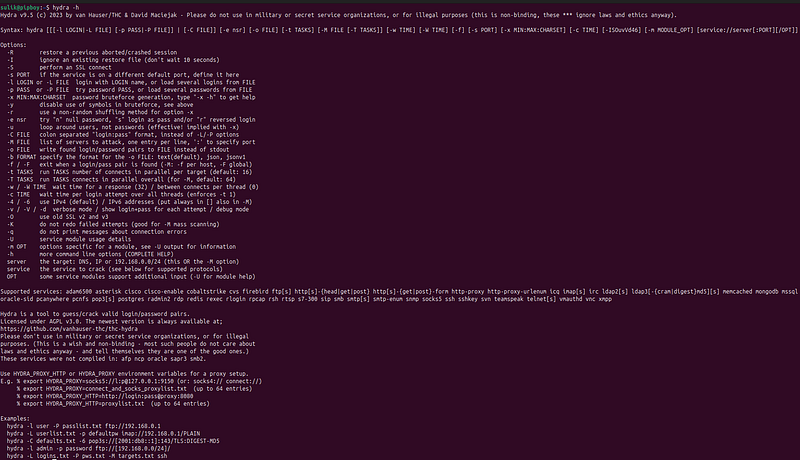
This command should display all the command-line options available with Hydra, indicating that the tool is ready for use. Always ensure you have permission before attempting to penetrate a network or system.
Core Features and Functionalities of Hydra
Hydra, known for its robustness and versatility, supports an extensive array of protocols, making it an indispensable tool for network security professionals. Below is an overview of the protocols supported by Hydra, demonstrating its comprehensive capabilities in handling different network services and applications.
Supported Protocols
Hydra can target a wide range of protocols, reflecting its utility in various security and penetration testing scenarios. Here’s a comprehensive list of the protocols that Hydra can work with:
-
General Network Protocols: FTP, SMTP, POP3, IMAP, HTTP (FORM-GET, FORM-POST, GET, HEAD, POST, PROXY), HTTPS (FORM-GET, FORM-POST, GET, HEAD, POST), Telnet, SNMP (v1, v2, v3), SOCKS5.
-
Remote Administration Protocols: RDP, SSH (v1 and v2), SSHKEY, VNC, Rexec, Rlogin, Rsh, PC-Anywhere, VMware-Auth.
-
Database Protocols: MS-SQL, MYSQL, Oracle (Listener, SID, and general Oracle), PostgreSQL, Firebird.
-
Application Specific Protocols: LDAP, SIP, SMB, XMPP, ICQ, IRC, AFP, NCP, PCNFS, SNMP, RTSP, SAP/R3, CVS, Subversion.
-
Miscellaneous and Less Common Protocols: Cisco AAA, Cisco auth, Cisco enable, MEMCACHED, MONGODB, NNTP, Radmin, SMTP Enum, Teamspeak (TS2).
Command Syntax
Understanding the basic command syntax is crucial for effectively using Hydra. The tool is command-line based, which allows for flexibility and automation in testing environments. Here’s a breakdown of the fundamental command syntax used by Hydra:
hydra
[options]
 server service
[module-options]
-
**server**: The IP address or hostname of the target server. -
**service**: Specifies the protocol to attack (e.g., ftp, http, smb). -
**options**: General options that affect how Hydra operates. Common options include: -
-s [port]: If the service is running on a non-default port. -
-l [login]or-L [file]: Specifies a single login name or a file containing a list of usernames. -
-p [password]or-P [file]: Specifies a single password or a file containing a list of passwords. -
-t [tasks]: Number of parallel connections (tasks) to use. -
-vor-V: Verbosity of the output;-Vshows every attempt,-vshows only successful attempts.
How -t Affects the Cracking Process
Speed Optimization:
-
Parallelism: By increasing the number of tasks, you are telling Hydra to perform more password attempts concurrently. This can significantly reduce the time it takes to crack a password because more password possibilities are being tested in a given time frame.
-
Resource Utilization: Parallel tasks consume more CPU, memory, and network bandwidth. While a higher number of tasks can speed up the attack, it also increases the load on both the attacking machine and the target system, which might lead to network congestion or system instability.
Finding the Optimal Number:
-
Balance: The key is to find a balance where the number of tasks maximizes the attack speed without overwhelming the network or the systems involved. If the number is too low, the attack will proceed slowly; if too high, it may cause network issues or even trigger security alarms.
-
Target Response: The optimal number of tasks often depends on the responsiveness of the target system and the quality of the network connection. Systems that process requests more slowly may become unresponsive if too many parallel connections are opened.
Practical Example
Suppose you are attempting to crack an FTP password. You might start with a moderate number of tasks:
hydra -l user -
P
 passlist
.txt
 -t
10

192.168
.
1.1
 ftp
In this example, Hydra will make up to 10 simultaneous login attempts against the FTP server at192.168.1.1. If the server handles this well and the network bandwidth is sufficient, you could increase the number to speed up the attack further. Conversely, if the server starts showing signs of strain or if connections begin dropping, it would be wise to reduce the number of tasks.
Using the-tflag effectively requires monitoring the performance and responsiveness during the attack and adjusting the number of parallel tasks accordingly. This ensures an efficient attack while minimizing the risk of disrupting the target network or alerting administrators through abnormal traffic patterns. Always conduct such tests with authorization and in a controlled environment to avoid legal and ethical issues.
Example Command:
hydra -l admin -
P
 password_list
.txt
 -t
4
 -vV
192.168
.
0.1
 ssh
This command tries to log in as “admin” using a list of passwords frompassword_list.txton the SSH service running on192.168.0.1, using 4 parallel tasks and showing detailed output.
Practical Usage with real examples:
General Network Protocols :
FTP
(Full guide to FTP cracking is here)
hydra -L Documents/PasswordCracking/Dictionaries/1000_usernames.txt -P Documents/PasswordCracking/Dictionaries/short_pass_list.txt ftp://192.168.126.143

Telnet
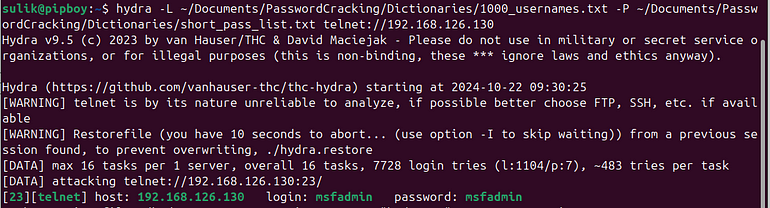
(Full guide to Telnet cracking is here)
hydra -L Documents/PasswordCracking/Dictionaries/1000_usernames.txt -P Documents/PasswordCracking/Dictionaries/short_pass_list.txt telnet://192.168.126.143
SMTP
Basic Syntax for SMTP in Hydra:
hydra -
P
 passwordlist
.txt
 -l user -s port -S -v -V smtp
.server
.com
 smtp
-
**-P passwordlist.txt**: Specifies the path to the file containing a list of passwords to test. -
**-l user**: Specifies the single username to attempt authentication with. You can use-Lfor a list of usernames. -
**-s port**: (Optional) Specifies the port number to connect to if the SMTP server is not on the default port (25 for unencrypted or 587 for encrypted STARTTLS). -
**-S**: (Optional) Enables SSL support, which might be necessary if the SMTP server requires SSL (port 465 usually). -
**-v**and**-V**: Increase the verbosity of the report that Hydra outputs.-vshows only the successful attempts, while-Vshows all attempts.
Suppose you are testingsmtp.example.comthat requires SSL and runs on port 465, and you have a list of usernames and passwords. The Hydra command might look like this:
hydra -L userlist
.txt
 -
P
 passlist
.txt
 -s
465
 -S -v smtp
.example
.com
 smtp
POP3
Basic Syntax for POP3 in Hydra:
hydra -l user -
P
 passlist
.txt
 -s port -S -v -V pop3
.server
.com
 pop3
-
**-l user**: Specifies the single username to attempt authentication with. You can use-Lfor a list of usernames. -
**-P passlist.txt**: Specifies the path to the file containing a list of passwords to test. -
**-s port**: (Optional) Specifies the port number to connect to if the POP3 server is not on the default port 110. Use 995 if SSL is enabled and required. -
**-S**: (Optional) Enables SSL support, which might be necessary if the POP3 server requires SSL (port 995 usually). -
**-v**and**-V**: Increase the verbosity of the report that Hydra outputs.-vshows only the successful attempts, while-Vshows all attempts.
Suppose you are testingpop3.example.comthat requires SSL and runs on port 995, and you have a list of usernames and passwords. The Hydra command might look like this:
hydra -L userlist
.txt
 -
P
 passlist
.txt
 -s
995
 -S -v pop3
.example
.com
 pop3
IMAP
Basic Syntax for IMAP in Hydra:
hydra -l user -
P
 passlist
.txt
 -s port -S -v -V imap
.server
.com
 imap
-
**-l user**: Specifies the single username to attempt authentication with. You can use-Lfor a list of usernames. -
**-P passlist.txt**: Specifies the path to the file containing a list of passwords to test. -
**-s port**: (Optional) Specifies the port number to connect to if the IMAP server is not on the default port 143. Use 993 if SSL is enabled and required. -
**-S**: (Optional) Enables SSL support, which might be necessary if the IMAP server requires SSL (port 993 usually). -
**-v**and**-V**: Increase the verbosity of the report that Hydra outputs.-vshows only the successful attempts, while-Vshows all attempts.
SNMP (v1, v2, v3)
Understanding SNMP Protocol in Hydra
The Simple Network Management Protocol (SNMP) is used for monitoring and managing network devices like routers, switches, servers, and other hardware on a network. SNMP versions 1, 2, and 3 provide different levels of security and capabilities, with SNMPv3 offering the most security through authentication and encryption. When using Hydra to perform attacks on SNMP services, you are typically testing the community strings for SNMPv1 and SNMPv2, and usernames and passwords (and potentially encryption keys) for SNMPv3.
Usage of SNMP in Hydra
Hydra can crack SNMP community strings and SNMPv3 authentication credentials by trying various combinations provided by the user. SNMP is particularly sensitive because it can potentially give unauthorized users access to manage network devices.
Basic Syntax for SNMP in Hydra:
hydra -
P
 communitylist
.txt
 -v -V
[IP Address]
 snmp
-
**-P communitylist.txt**: Specifies the path to the file containing a list of community strings or passwords to test. -
**-v**and**-V**: Increase the verbosity of the report that Hydra outputs.-vshows only the successful attempts, while-Vshows all attempts.
For SNMPv3, which includes authentication and privacy (encryption) protocols, the command becomes more complex because you need to specify the username, authentication method, and possibly an encryption key:
Basic Syntax for SNMPv3 in Hydra:
hydra -l admin -
P
 passlist
.txt
 -v -V
[IP Address]
 snmpv3 -m auth:MD5:priv:AES128
-
**-l admin**: Specifies the username to attempt authentication with. -
**-P passlist.txt**: Specifies the path to the file containing a list of passwords. -
**-m auth:MD5:priv:AES128**: Specifies SNMPv3 specific options whereauthis the authentication protocol (MD5 or SHA), andprivis the privacy (encryption) protocol (AES128, AES192, AES256, DES).
How to Determine SNMP Settings for a Specific Device
To effectively use Hydra to test an SNMP service, you need to know the correct settings and how the device handles SNMP requests:
-
Identify SNMP Configuration on the Device:
-
Determine if the device uses SNMPv1, v2c, or v3.
-
For v1 and v2c, identify the commonly used community strings.
-
For v3, identify the required authentication and encryption settings.
-
Testing SNMP Configuration Manually:
-
You can use tools like
snmpwalkorsnmpgetto manually send SNMP requests to the device to verify its response. -
Example using
snmpwalk:
snmpwalk -v
1
 -c
public
 [IP Address]
1.3
.6
.1
For SNMPv3:
snmpwalk -v3 -u admin -l authPriv -
a
 MD5 -
A
 "authpassword" -x AES -X "privpassword"
[IP Address]

1.3
.
6.1
-
Crafting the Hydra Command:
-
Once you understand the SNMP version and its configuration, construct your Hydra command to effectively test the credentials or community strings.
SOCKS5
Understanding SOCKS5 Protocol in Hydra
SOCKS5 is an internet protocol that routes network packets between a client and server through a proxy server. SOCKS5 can authenticate with a username and password, providing an additional layer of security over SOCKS4. When using Hydra to perform attacks on SOCKS5 services, you typically test the credentials used for authenticating with a SOCKS5 proxy server.
Usage of SOCKS5 in Hydra
Hydra can be employed to crack usernames and passwords on SOCKS5 servers by attempting to authenticate using various combinations. This process involves specifying the target SOCKS5 server, the port it’s running on, and the credential pairs to test.
Basic Syntax for SOCKS5 in Hydra:
hydra -L userlist
.txt
 -
P
 passlist
.txt
 -s port -v -V server socks5
-
**-L userlist.txt**: Specifies the path to the file containing a list of usernames to test. -
**-P passlist.txt**: Specifies the path to the file containing a list of passwords to test. -
**-s port**: Specifies the port number to connect to if the SOCKS5 server is not on the default port (usually 1080). -
**-v**and**-V**: Increase the verbosity of the report that Hydra outputs.-vshows only the successful attempts, while-Vshows all attempts.
How to Determine SOCKS5 Settings for a Specific Server
To effectively use Hydra to test a SOCKS5 server, you need to know the correct settings and how the server handles authentication:
-
Identify SOCKS5 Server Details:
-
Determine the SOCKS5 server address and port.
-
Verify whether the server uses authentication (username/password).
2. Testing SOCKS5 Configuration Manually:
- You can use network tools like
curlto manually connect to the SOCKS5 server and test authentication:
curl --socks5 username:password
@server
:port http:
//example.com
-
This can help verify the server’s response to authentication attempts and confirm the correct username/password fields.
-
Crafting the Hydra Command:
-
Once you understand the server’s configuration, you can construct your Hydra command to test credentials effectively.
-
Make sure to correctly specify the server’s IP address or hostname along with the appropriate port.
Example
Suppose you are testing a SOCKS5 server atsocks5.example.comrunning on port1080, and you have a list of usernames and passwords. The Hydra command might look like this:
hydra -L userlist
.txt
 -
P
 passlist
.txt
 -s
1080
 -v socks5
.example
.com
 socks5
This command attempts to authenticate against the SOCKS5 server, testing multiple usernames and passwords concurrently.
Remote Administration Protocols :
RDP
Other guide to RDP Cracking with Crowbar and PPG tools here
Understanding RDP Protocol in Hydra
The Remote Desktop Protocol (RDP) is a proprietary protocol developed by Microsoft that allows users to connect to another computer over a network connection. RDP is widely used for managing servers and desktops remotely. When using Hydra to perform attacks on RDP services, you’re typically testing the credentials used for authenticating with an RDP server, which can be vulnerable to brute-force attacks if not properly secured.
Usage of RDP in Hydra
Hydra can crack passwords on RDP servers by attempting to authenticate using various username and password combinations. This involves specifying the target RDP server, the port it’s running on (default is 3389), and the credential pairs to test.
Basic Syntax for RDP in Hydra:
hydra -t
1
 -V -f -L userlist.txt -P passlist.txt rdp:
//[IP Address]
-
**-t 1**: Specifies the number of parallel tasks to use. RDP servers typically have a limit on simultaneous connections, so it's often practical to use a single task. -
**-V**: Increases verbosity to show all login attempts. -
**-f**: Tells Hydra to stop on the first valid username/password found. -
**-L userlist.txt**: Specifies the path to the file containing a list of usernames to test. -
**-P passlist.txt**: Specifies the path to the file containing a list of passwords to test.
How to Determine RDP Settings for a Specific Server
To effectively use Hydra to test an RDP server, you need to know the correct settings and how the server handles authentication:
-
Identify RDP Server Details:
-
Determine the RDP server address and port (commonly 3389).
-
Verify whether the server uses Network Level Authentication (NLA), which can complicate brute-force attempts as it requires both authentication and session initiation to be secured.
-
Testing RDP Configuration Manually:
-
You can use the Remote Desktop Connection client or similar software to manually connect to the RDP server to verify its response to authentication attempts.
-
This helps confirm the correct username/password fields and whether additional security measures are in place.
-
Crafting the Hydra Command:
-
Once you understand the server’s configuration, construct your Hydra command to test credentials effectively.
-
Adjust parameters based on your findings, such as adding
-s [port]if the default port has been changed.
Example
Suppose you are testing an RDP server at IP address192.168.1.100running on the default port. The Hydra command might look like this:
hydra -t
1
 -V -f -L userlist.txt -P passlist.txt rdp:
//192.168.1.100
This command attempts to authenticate against the RDP server, testing multiple usernames and passwords concurrently, but only one attempt at a time due to the-t 1setting.
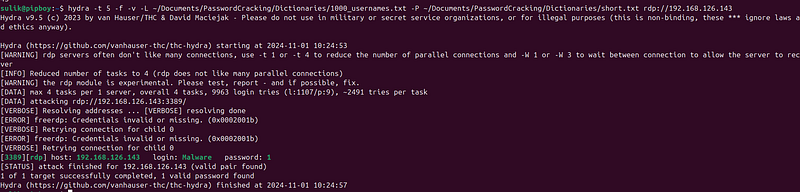
hydra -t
5
 -f -v -L ~
/Documents/
PasswordCracking
/
Dictionaries
/1000_usernames.
txt
 -P ~
/Documents/
PasswordCracking
/
Dictionaries
/short.
txt

rdp
:
//192.168.126.143
SSH
I suggest to use Metasploit.Explanation here:
Database Protocols :
MS-SQL, MYSQL, Oracle (Listener, SID, and general Oracle), PostgreSQL, Firebird.
When using Hydra to test database services like MS-SQL, MySQL, Oracle, PostgreSQL, and Firebird, you’re primarily looking to authenticate using various username and password combinations, or in some cases (like Oracle), even SID (System Identifier) testing. Each database system has its specific connection protocols and default ports that are commonly targeted for brute-force attacks if not properly secured. Below, I will outline how to use Hydra with these databases in a consolidated manner.
General Usage of Hydra with Database Services
Hydra can be configured to perform password-cracking attacks on a variety of database services by specifying the target database server, the appropriate port, and the credential pairs to test. The general command structure follows this pattern:
hydra -L userlist
.txt
 -
P
 passlist
.txt
 -s
[port]
 -v -V -f
[IP Address]

[service]
Here’s how you would specify each service for different databases:
-
MS-SQL (Microsoft SQL Server)
-
Default port: 1433
-
Service in Hydra:
mssql -
MySQL
-
Default port: 3306
-
Service in Hydra:
mysql -
Oracle
-
Default port: 1521 for the listener
-
Services in Hydra:
-
oracle-listenerfor testing the TNS listener. -
oracle-sidto brute-force SIDs. -
oraclefor general Oracle database login attempts. -
PostgreSQL
-
Default port: 5432
-
Service in Hydra:
postgres -
Firebird
-
Default port: 3050
-
Service in Hydra:
firebird
Configuring Hydra for Database Attack
For each database type, you need to modify the Hydra command to fit the specific server and service. The command will generally include:
-
-Land-Pto specify paths to the username and password lists. -
-sto define the specific port if it's not the default one. -
-vand-Vfor verbosity levels. -
-fto stop after the first found password.
Example Commands
Here are example commands for each database type:
- MS-SQL:
hydra -L userlist
.txt
 -
P
 passlist
.txt
 -s
1433
 -vV -f
192.168
.
1.100
 mssql
- MySQL:
hydra -L userlist
.txt
 -
P
 passlist
.txt
 -s
3306
 -vV -f
192.168
.
1.101
 mysql
- Oracle Listener:
hydra -
P
 sidlist
.txt
 -s
1521
 -vV -f
192.168
.
1.102
 oracle-listener
- PostgreSQL:
hydra -L userlist
.txt
 -
P
 passlist
.txt
 -s
5432
 -vV -f
192.168
.
1.103
 postgres
- Firebird:
hydra -L userlist
.txt
 -
P
 passlist
.txt
 -s
3050
 -vV -f
192.168
.
1.104
 firebird
Testing and Security Considerations
When using Hydra for testing database services:
-
Ensure Authorization: Always have explicit authorization to perform security testing on any network or database system to avoid legal issues.
-
Monitor Impact: Be mindful of the potential impact on system performance and network traffic during testing. Too many simultaneous connections might overload the database server.
-
Use Updated Tools: Make sure Hydra and your database clients are updated to support the latest authentication protocols and encryption standards.
-
Respect Ethical Guidelines: Conduct tests ethically and responsibly to help improve system security without causing unnecessary harm or exposure.
Good luck!
Follow for practical cybersecurity research
If you’re interested in**Offensive security,**AI security, real-world attack simulations, CTI, and detection engineering— this is exactly what I focus on.
Stay connected:
→Subscribe on Medium:medium.com/@1200km →Connect on LinkedIn:andrey-pautov →GitHub — tools & labs:github.com/anpa1200 →Contact:1200km@gmail.com