SQLMap: A Deep Dive into Automated SQL Injection Testing. Part 1. (basic, wizard)
- Category: CTI
- Source article: https://medium.com/@1200km/sqlmap-a-deep-dive-into-automated-sql-injection-testing-part-1-basic-wizard-6dd540363c83
- Published: 2024-11-04
- Preserved media: 11 image(s), including cover images, screenshots, diagrams, and infographics where present.
- Preserved technical blocks: 15 code/configuration block(s).
Ecosystem Fit
This page mirrors the original Medium article into the 1200km.com Docusaurus ecosystem. The original article flow, images, screenshots, infographics, and technical blocks are preserved from the export.
Learn how SQLMap transforms the landscape of database security by automating the detection and exploitation of SQL injection vulnerabilities.
Introduction to SQLMap
In the vast landscape of cybersecurity tools, SQLMap holds a distinct position as the go-to solution for automating the detection and exploitation of one of the most dangerous vulnerabilities in web applications: SQL injection. This open-source tool offers a robust framework designed to penetrate database layers, uncovering flaws that could potentially compromise sensitive data.
SQL injections allow attackers to manipulate SQL queries by inserting or “injecting” malicious SQL statements into an entry field for execution. SQLMap automates this process, providing security professionals and penetration testers with a powerful means to test the security of database servers and web applications. With its ability to support and detect a wide range of database management systems — from MySQL and Oracle to PostgreSQL and beyond — SQLMap serves as an essential tool in any security professional’s arsenal.
The purpose of this guide is not just to introduce SQLMap but to delve deep into its functionality, demonstrating how it can be leveraged to conduct thorough security assessments. Whether you’re a seasoned security expert or a novice in the field, understanding how to utilize SQLMap effectively can significantly enhance your ability to secure applications against SQL injection attacks.
Legal and Ethical Use Disclaimer
The information provided in this guide on SQLMap is intended for educational and professional purposes only. SQLMap is a powerful tool designed for testing the security of your own systems or systems for which you have explicit authorization to test. It is strictly prohibited to use SQLMap for illegal activities, including testing websites, servers, or databases without permission.
Users are advised to ensure that their activities with SQLMap comply with all applicable laws and regulations. Unauthorized use of this tool can result in significant penalties and criminal prosecution. The author of this post disclaims any liability for misuse of SQLMap or the information contained within this guide. Use this tool responsibly and always seek explicit permission before conducting any security assessments on third-party systems.
Core Features of SQLMap
SQLMap is a comprehensive tool that automates the process of detecting and exploiting SQL injection vulnerabilities. Its versatility and efficacy stem from several key features:
Database Fingerprinting
-
Functionality: SQLMap excels in accurately identifying the backend database management system (DBMS) powering an application. This automatic detection enables the tool to tailor its attack to fit the specific characteristics and vulnerabilities of the identified DBMS.
-
Benefits: Understanding the DBMS in use is crucial for crafting effective SQL injection attacks, and SQLMap automates this process, saving time and increasing the precision of security testing.
Data Fetching
-
Functionality: Beyond mere detection, SQLMap can retrieve a wealth of information from a database. It can extract user lists, passwords, tables, columns, and even specific data stored in the database.
-
Benefits: This capability is vital for security assessments, enabling testers to demonstrate the potential impact of a breach. It allows for comprehensive testing of data privacy and security measures in place.
Accessible DBMS
-
Functionality: SQLMap supports a wide array of DBMS, making it a versatile tool for testing most of the common and even less frequently used database systems.
-
Supported DBMS:
-
MySQL: Widely used in web applications, offering a common target for SQL injections.
-
Oracle: Used in enterprise applications, known for its robustness and complexity.
-
PostgreSQL: Favored for its open-source nature and powerful features.
-
Microsoft SQL Server & Microsoft Access: Common in various business environments with extensive Windows integration.
-
IBM DB2: Typically used in legacy and enterprise environments requiring high reliability.
-
SQLite: Popular in mobile applications and light web apps.
-
Firebird & Sybase: Known for their deployment in specialized or older systems.
-
SAP MaxDB: Used primarily in SAP environments, which are critical to enterprise operations.
Installation and Setup of SQLMap
SQLMap is a versatile tool for testing SQL injection vulnerabilities, and setting it up is straightforward. Below are the instructions for downloading and installing SQLMap, along with basic configuration tips for getting started.
Download and Installation
SQLMap is developed in Python, making it easily runnable on any system with Python installed. Here’s how you can install SQLMap on various operating systems:
Windows:
- Install Python: Ensure Python is installed on your system. You can download it from theofficial Python website.
2. Download SQLMap: You can clone SQLMap from its official GitHub repository. Open Command Prompt and run:
git
clone
 --depth 1 https://github.com/sqlmapproject/sqlmap.git
3. Navigate to SQLMap Directory: Use the commandcd sqlmapto move into the directory.
Linux/MacOS:
- Install Python: Most Linux distributions and MacOS come with Python pre-installed. You can check by running
python --versionorpython3 --versionin the terminal.
2. Clone SQLMap Repository: Open a terminal and run:
git
clone
 --depth 1 https://github.com/sqlmapproject/sqlmap.git
3. Change to SQLMap Directory: Enter the directory withcd sqlmap.
Basic Usage and Examples
Basic command:
sqlmap
or
python3 sqlmap
or
puthon3 path/to/sqlmap/sqlmap.py

Use -h for basic and -hh for advanced help
sqlmap -h
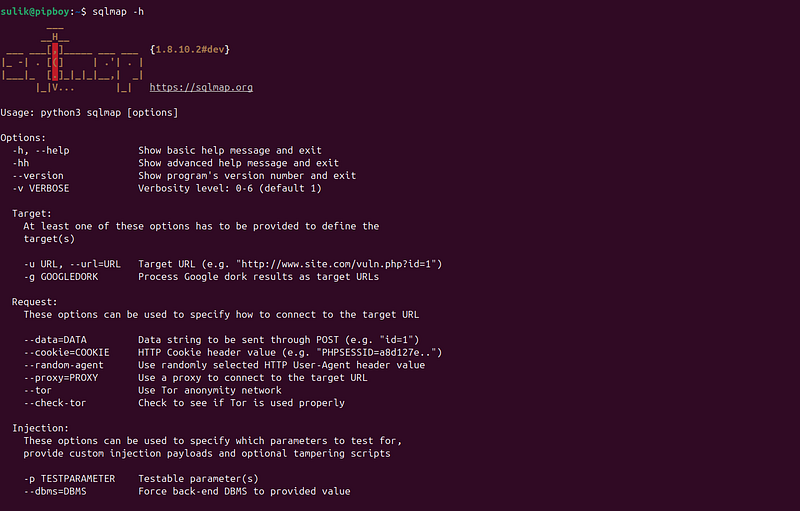
sqlmap -hh
Wizard: Simple wizard interface for beginner users
The--wizardmode in SQLMap is designed to simplify the tool's operation, making it more accessible for beginners or those who prefer a more guided approach to configuring their SQL injection tests. This feature offers an interactive experience, prompting users with a series of questions to help them set up their attack without needing to manually specify numerous command-line options. Here’s how it works and why it might be useful:
Functionality of --wizard Mode
When you run SQLMap with the--wizardoption, the tool initiates a step-by-step wizard that guides you through the process of setting up an SQL injection test. This mode is particularly helpful if you are not familiar with the various command-line arguments SQLMap offers or if you want a quick setup for standard tests.
How to Use --wizard
To start SQLMap in wizard mode, simply run the following command in your terminal or command prompt, depending on your installation path and operating system:
sqlmap --wizard
After wizard launch you’ll see next questions:

Please enter full target
URL

(-u)
:
Enter full URL of WebSite/Service with DB

POST data (
--data
)
[Enter for None]
:
The--dataoption in SQLMap is used to specify data that should be sent through a POST request when testing a web application for SQL injection vulnerabilities. This feature is particularly important for situations where the SQL injection vulnerability is within a form or any other part of the application that requires POST data to interact with the database.
Understanding the**--data**Option
When you interact with web applications, data can be sent to the server via either GET or POST methods. While GET requests append data to the URL, POST requests include data within the body of the request, which is not visible in the URL. SQLMap needs to know this data to effectively test POST parameters for vulnerabilities.
Using the--dataoption in SQLMap correctly requires understanding the specific POST data that a target website expects when submitting forms or requests. Here’s how you can find the correct POST data to use and three examples of how it might look in SQLMap.
How to Find Correct POST Data on a Target Website
To determine the correct POST data for a website, you typically need to inspect the HTTP requests sent by the web browser when interacting with forms or other dynamic elements. Here’s a general approach using browser developer tools:
-
Open Developer Tools: In most browsers, you can access this by right-clicking on the webpage and selecting “Inspect” or pressing
Ctrl+Shift+I(orCmd+Option+Ion Mac). -
Navigate to the Network Tab: Refresh the page with the form or submit a form to capture the network activity.
-
Filter for the POST Request: Look for entries in the network log that use the POST method. Click on the relevant entry.
-
Examine the Form Data: In the details pane, find the section labeled “Form Data” or “Request Payload”. This section shows the key-value pairs that are sent to the server.
This data is what you need to pass to the--dataoption in SQLMap.
Example 1: User Login Form
Suppose a login form on a website sends the following data:
-
Username: admin
-
Password: pass123
In SQLMap, you would use:
python sqlmap.py -u http://example.com/login --data=
"username=admin&password=pass123"
In wizard mode just enter:
"username=admin&password=pass123"
Example 2: Search Function
If a website has a search box that sends POST data like:
- Search query: test
The SQLMap command might look like:
python sqlmap.py -u http://example.com/login --data=
"query=test"
In wizard mode just enter:
"query=test"
Example 3: Feedback Submission
For a feedback form that includes several fields:
-
Email: user@example.com
-
Message: Great site!
-
Subscribe: yes
The corresponding SQLMap usage would be:
python sqlmap.py -u http:
//
example.com/login --data=
"email=user@example.com&message=Great site!&subscribe=yes"
In wizard mode just enter:
"email=user@example.com&message=Great site!&subscribe=yes"

The--leveland--riskoptions in SQLMap are used to specify the intensity and type of SQL injection tests that SQLMap will perform on the target. These options allow users to fine-tune how aggressive and invasive their testing should be. Here’s an explanation of the different settings for these options when SQLMap prompts you with "Injection difficulty (--level/--risk). Please choose:":
— level Option
This option determines the number and complexity of tests (payloads) SQLMap will perform. The levels range from 1 to 5, with 1 being the default setting:
-
[1] Normal (default): This level performs only the most common and basic tests, which are typically enough to identify vulnerabilities in most vulnerable applications without being too intrusive or generating too much noise.
-
[2] Medium: At this level, SQLMap expands its tests to include more payloads that are a bit more aggressive and might target less common or more robust SQL injection vulnerabilities.
-
[3] Hard: This highest level uses all possible tests, targeting even obscure and time-consuming SQL injection methods. It’s designed for comprehensive assessments where the priority is to identify every possible vulnerability.
— risk Option
This option adjusts the types of payloads SQLMap will use, potentially impacting the data or operation of the application. The--risklevel ranges from 1 to 3:
-
[1] Normal (default): Safe for most applications, this level avoids potentially destructive SQL operations, such as those that might modify data.
-
[2] Medium: This level includes more aggressive SQL operations that might change database information, such as using
INSERT,UPDATE, or even adding new values. -
[3] Hard: Includes potentially harmful SQL operations, such as those that can alter or delete data. This level should be used with caution, especially on production systems.
Choosing the Right Settings
When prompted to choose a level of injection difficulty, your choice should be based on:
-
The sensitivity and purpose of the system being tested: For critical production systems, stick with a lower risk level to avoid disruptive actions.
-
The depth of testing required: For a preliminary scan, a lower level might suffice. For a thorough security audit, a higher level may be necessary.
-
Legal and ethical considerations: Always ensure that you have the necessary permissions to perform these tests, especially with higher risk levels that could impact system operations.
By adjusting the--leveland--risk, you can control the thoroughness of the SQL injection testing and minimize potential disruptions or damages to the target application. These settings help cater the testing process to match specific security objectives and operational constraints.

Enumeration Options
Basic (default):
-
Description: Retrieves only the essential information from the database. This typically includes the database server banner, which can reveal the DBMS version, and the privileges of the current user. It’s a quick check to gather minimal but significant details.
-
Example SQLMap Command:
sqlmap -u http://example.com --banner
Intermediate:
-
Description: This setting goes deeper by not only fetching basic information but also more detailed data such as the database names, the current user, and possibly table names. It provides a clearer picture of the database structure without going into extensive detail about the contents of each table.
-
Example SQLMap Command:
sqlmap -u http://example.com --current-user --dbs
All:
-
Description: This option is the most comprehensive, designed to extract as much information as possible from the database. It includes everything from basic and intermediate levels, plus detailed enumeration of all tables, columns, and potentially accessible data in each table. It’s used for thorough assessments where understanding the complete database schema and accessing all retrievable information is necessary.
-
Example SQLMap Command:
sqlmap -u http://example.com --all
Choosing the Right Enumeration Level
The level of enumeration you choose should depend on your specific goals, the scope of the penetration test, and the permissions granted by the system owner. Here’s what to consider:
-
Basic: Use this for initial reconnaissance when you need quick results or when you are performing a light security audit.
-
Intermediate: Suitable for deeper security assessments where understanding the broader database structure is important.
-
All: Ideal for in-depth vulnerability assessments and audits where comprehensive data extraction is required to evaluate the full extent of potential data exposure.
Real life example:
**URL:**Practice laboratory from ITSAFE college
**POST data:**empty
**Injection difficulty:**3 — Hard
**Enumeration:**3 — All
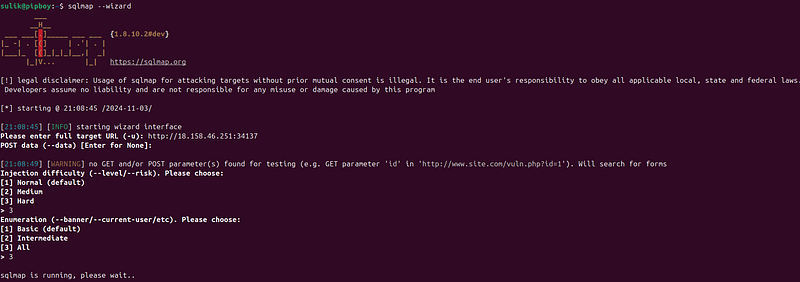
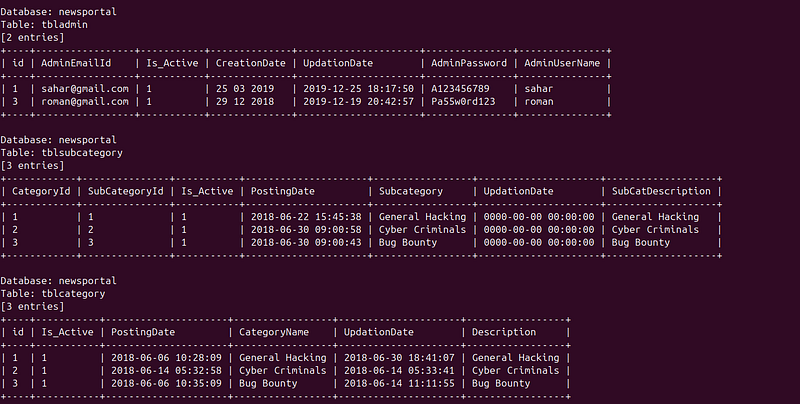
Questions while scanning:

Edit POST data
[default: searchtitle=]
 (Warning: blank fields detected): searchtitle=
This message occurs during the setup process when SQLMap has detected that the target URL or request includes POST data with one or more fields, in this case, a field namedsearchtitle. The prompt indicates that the default value for this field is currently empty (searchtitle=), and SQLMap is warning you that it has detected these blank fields in the POST data.
The tool then asks if you want to manually enter data for this field or edit the existing data. If you leave it as it is and press Enter, SQLMap will proceed without modifying the field’s value.
Decision: Fill Blank Fields with Random Values
Prompt: do you want to fill blank fields with random values? [Y/n]
Following the initial prompt, SQLMap offers an option to automatically fill any blank fields with random values. This feature is particularly useful in situations where:
-
Testing Efficiency: You may not know the valid or typical content of the field, and filling it with random data can help in efficiently testing for vulnerabilities without needing precise data.
-
Broad Testing: Automatically filling fields allows you to perform broader tests, ensuring that SQLMap tests various inputs that you might not consider manually.
Responses:
-
Y (Yes): Choosing ‘Yes’ instructs SQLMap to populate the blank fields with randomly generated values, which could lead to discovering vulnerabilities that are only exposed via certain types of inputs.
-
n (No): Opting ‘No’ means SQLMap will either send the data as-is (with the field left blank if you didn’t manually provide a value) or only with the values you’ve specifically set, which can be useful if you’re testing how the application handles empty inputs.
Practical Use
In practice, if you’re unsure about what values to use for testing or want to ensure a thorough examination of how the application handles unexpected or varied input, allowing SQLMap to fill in random values can be a beneficial choice. However, if the test’s scope is to see how the application behaves with no input or specific input values, you should opt to enter those values manually or choose ‘No’ to random filling.

do you want to store hashes to a temporary file for eventual further processing with other tools [y/N] N do you want to perform a dictionary-based attack against retrieved password hashes? [Y/n/q] Y
Storing Hashes to a Temporary File
Prompt: do you want to store hashes to a temporary file for eventual further processing with other tools [y/N]
This question appears after SQLMap retrieves password hashes from a database. It asks if you want to save these hashes to a temporary file. This option is useful if you plan to use another tool to process or crack these hashes further. Here’s what each response implies:
-
Y (Yes): Opting ‘Yes’ will save the hashes to a temporary file. SQLMap will provide you with the file location, and you can use tools like Hashcat or John the Ripper to attempt cracking the hashes later.
-
N (No): The default option, ‘No’, means SQLMap will not save the hashes to a file. If you choose this, you’ll need to manually record any hashes if you wish to work with them later, or rely on SQLMap’s session data which might not be as permanent.
Choosing not to store hashes could be for reasons of security, convenience, or if you simply do not need the hashes after your current session.
Performing a Dictionary-Based Attack
Prompt: do you want to perform a dictionary-based attack against retrieved password hashes? [Y/n/q]
After hashes are retrieved, SQLMap can attempt to crack them using a dictionary-based attack. This method uses a list of predefined words (a dictionary) to try and find matches against the hashes. The responses here are:
-
Y (Yes): This response initiates a dictionary attack using SQLMap’s internal capabilities or integrated tools. SQLMap will proceed to try and crack the hashes using the dictionaries it has available.
-
n (No): Selecting ‘No’ skips the cracking attempt, which might be preferable if you plan to use a more specialized tool for the task or if cracking is not within the scope of your authorized test.