Unlocking Web Intelligence: A Deep Dive into WhatWeb

- Category: CTI
- Source article: https://medium.com/@1200km/unlocking-web-intelligence-a-deep-dive-into-whatweb-8ee4e64ce411
- Published: 2024-11-10
- Preserved media: 7 image(s), including cover images, screenshots, diagrams, and infographics where present.
- Preserved technical blocks: 14 code/configuration block(s).
Ecosystem Fit
This page mirrors the original Medium article into the 1200km.com Docusaurus ecosystem. The original article flow, images, screenshots, infographics, and technical blocks are preserved from the export.
Explore how WhatWeb deciphers the technologies powering websites, enhancing security and reconnaissance efforts.
Introduction
In the vast and ever-evolving landscape of web technologies, understanding the underlying components that power a website is crucial for a variety of professionals — from cybersecurity experts to market analysts. EnterWhatWeb, a robust command-line tool that excels in identifying the technologies used on websites. With the capability to recognize over 1700 different items, WhatWeb provides an essential service in the toolkit of digital professionals. Whether it’s pinpointing which content management system (CMS) a site uses, discovering the JavaScript libraries in operation, or identifying the server software hosting the pages, WhatWeb covers an extensive range of technologies. This powerful tool offers a window into the digital makeup of websites, providing valuable insights that aid in security assessments, competitive analysis, and much more.
Legal Disclaimer
This post is for educational purposes only. WhatWeb should be used responsibly and legally, with explicit permission from website owners. Unauthorized use may violate laws such as the Computer Fraud and Abuse Act in the U.S. and other similar laws globally. The author is not liable for misuse or any resulting consequences.
Installation
Installation on Linux
-
From the Package Manager:
-
For Debian-based systems like Ubuntu, you can install WhatWeb directly from the official repositories by opening a terminal and running:
sudo apt
-
get

update
sudo apt
-
get
 install whatweb
- For Red Hat-based systems like Fedora, you might need to enable additional repositories or download the tool directly from its source.
2. Using RubyGems:
- If you have Ruby installed, you can easily install WhatWeb using RubyGems:
gem install whatweb
3. From Source:
- You can also install WhatWeb by cloning the GitHub repository and running it from source, which ensures you have the most recent version:
git
clone
 https://github.com/urbanadventurer/WhatWeb.git
cd
 WhatWeb ./whatweb
Installation on macOS
-
Using Homebrew:
-
If you have Homebrew installed, you can install WhatWeb with the following command:
brew install whatweb
2. Using RubyGems:
- As with Linux, if Ruby is installed, you can use RubyGems:
gem install whatweb
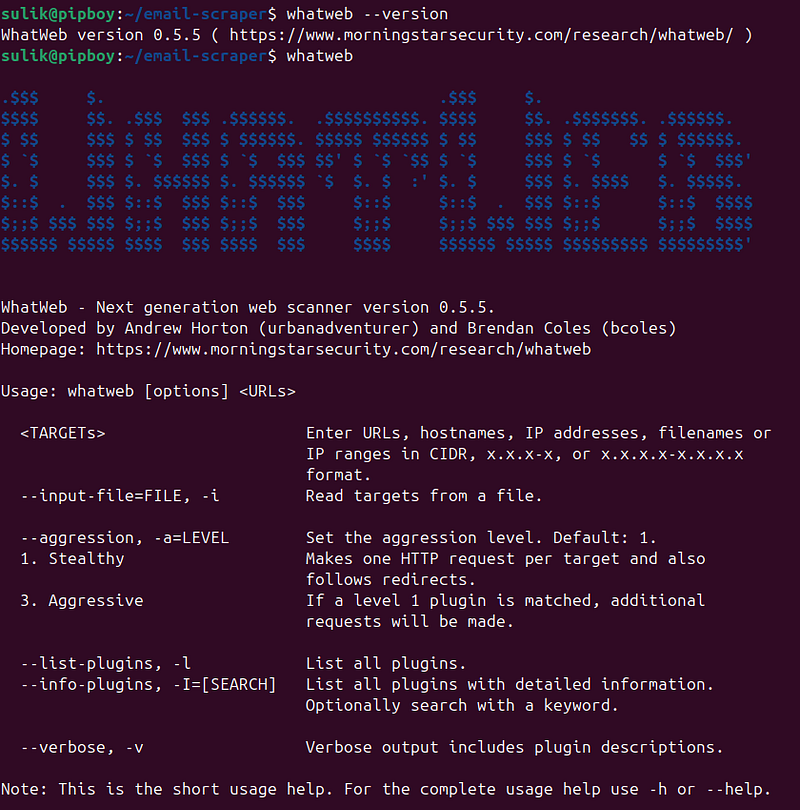
Verifying the Installation
- To verify that WhatWeb is installed correctly, you can run:
whatweb
--version
- This command should return the version of WhatWeb installed on your system, confirming that the installation was successful.
Basic Usage
The most straightforward use of WhatWeb is to scan a single website to identify the technologies it uses. To do this, open your terminal and type:
whatweb
[website URL]
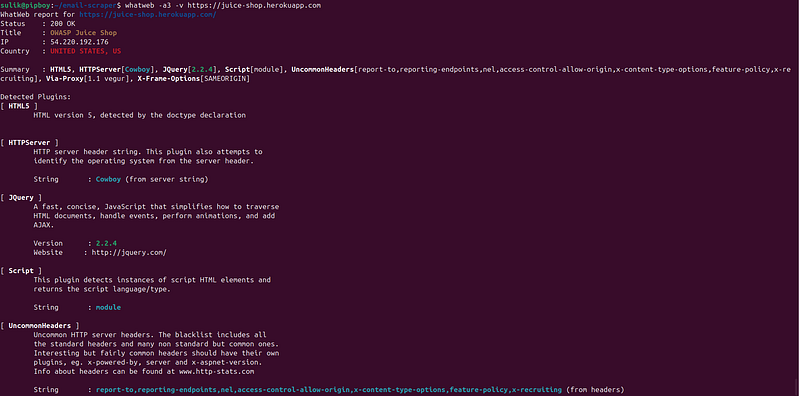
For example, to scanhttps://juice-shop.herokuapp.com, you would run:
whatweb https://juice-shop.herokuapp.com

This command will output a list of technologies detected on the website, such as the web server, CMS, JavaScript libraries, and more.
Advanced Scanning Options
WhatWeb comes with a variety of options that allow for more customized scanning:
Level 1: Stealthy
-
Behavior: Makes one HTTP request per target and follows redirects. This is the default setting and is designed to minimize the scan’s footprint while still gathering essential information.
-
Use Case: Ideal for initial reconnaissance where minimal detection risk is crucial. It provides a quick overview of detectable web technologies without drawing much attention.
Level 2: Heavy
-
Behavior: This level increases the number of requests by using plugins that perform more checks and gather more data than level 1, without being as intrusive as level 3.
-
Use Case: Useful when some level of detail is necessary but maintaining a lower profile is still important. It strikes a balance between depth of information and visibility.
Level 3: Aggressive
-
Behavior: If a level 1 plugin finds something, additional requests will be made to gather as much information as possible. This can include multiple requests to different pages or services to confirm the presence of specific technologies or versions.
-
Use Case: Appropriate for thorough security audits where detailed information about the target’s technology stack is required. This level is used when you have permission to perform an in-depth assessment and potential service disruption is not a concern.
whatweb -a1 https://juice-shop.herokuapp.com

- Verbose Output: For more detailed output, including plugin descriptions and full HTTP request and response headers, use the
--verboseoption:
whatweb -v https://juice-shop.herokuapp.com
-
Custom User-Agent: To specify a custom User-Agent in your HTTP requests, use the
--user-agentoption: -
whatweb --user-agent 'Mozilla/5.0 (X11; Ubuntu; Linux x86_64; rv:52.0) Gecko/20100101 Firefox/52.0' example.com
-
Output to File: To save the scan results to a file, you can redirect the output or use the
--logoption:
whatweb --
log
=output.txt example.com
- Scanning Multiple Websites: WhatWeb can scan multiple websites in a single command. Just list the URLs separated by spaces:
whatweb google.
com
 microsoft.
com
 yahoo.
com

- Scanning IP Ranges: WhatWeb can scan entire IP ranges. Specify the range in the command:
whatweb
192.168
.1
.1
-
192.168
.1
.255
- Identifying Specific Technologies: If you’re only interested in specific technologies, such as WordPress or Apache, you can customize WhatWeb to only report on those:
whatweb
--match-title
 WordPress example
.com