Automating a Safe DVWA Lab with Ansible: Build a Reproducible Vulnerable Environment for Training…
This older publication is retained for research history. Current technical applicability has not been asserted; validate versions, commands, and assumptions before use.
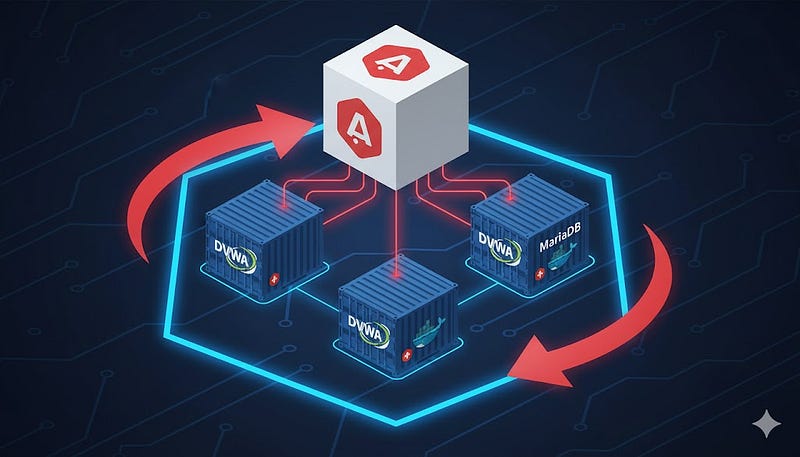
- Category: CTI
- Source article: https://medium.com/@1200km/automating-a-safe-dvwa-lab-with-ansible-build-a-reproducible-vulnerable-environment-for-tr-026d74697c4a
- Published: 2025-10-18
- Preserved media: 4 image(s), including cover images, screenshots, diagrams, and infographics where present.
- Preserved technical blocks: 23 code/configuration block(s).
Ecosystem Fit
This page mirrors the original Medium article into the 1200km.com Docusaurus ecosystem. The original article flow, images, screenshots, infographics, and technical blocks are preserved from the export.
Automating a Safe DVWA Lab with Ansible: Build a Reproducible Vulnerable Environment for Training and Research
How to deploy Damn Vulnerable Web App in minutes inside an isolated Docker lab — repeatable, auditable, and safe for every cybersecurity team.
**TL;DR:**I show you how to automate the deployment of a Damn Vulnerable Web App (DVWA) lab inside Docker using a single Ansible playbook. You’ll get repeatable, auditable labs that are safe by default (bound to127.0.0.1, internal Docker network), easy to snapshot/rollback, and ideal for training, tests, demos, and developer education. This article explains the business and technical benefits, step-by-step usage, hardening & OPSEC guidance, and suggested next steps for teams and CISO owners.
Design goals for this playbook
When I built the Ansible playbook for DVWA deployment I kept these design principles:
-
Safe-by-default: Bind DVWA to
127.0.0.1, use an internal Docker network, and avoid any automatic exploit or offensive automation. -
Idempotent: Re-running the playbook should converge to the same state (recreate or update containers safely).
-
Explicit manual gates: DB initialization via the web
setup.phpis left as a conscious manual step to force operator attention and snapshots. -
Auditable artifacts: Write a small
/root/dvwa_deploy_info_<host>.txtartifact with deployment metadata. -
Optional build-from-source: Support pulling a prebuilt imageorbuilding DVWA from source so teams can inspect and modify the app.
-
Operator-centric: Easy helper commands for snapshots, logs, and rollback — designed for a CISO or lab admin to use in a training session.
Business value (for CISO / security leadership)
-
Training ROI— Trainers can run identical labs for large cohorts with a consistent baseline, enabling comparable skill assessments.
-
Audit & Compliance— When you must prove controlled security training, the deploy playbook + commit history shows pedigree and intent.
-
Time-to-value— Instead of spending hours prepping, a shift lead can spawn 5 fresh labs in minutes for parallel workshops.
-
Reduced operational risk— Safe defaults prevent accidental exposure of intentionally vulnerable services to production or the internet.
-
Cost control— Deterministic teardown prevents forgotten VMs/containers; you automate cleanup to avoid recurring costs.
-
Integration points— The same playbook can be used to seed GitHub Action jobs (ephemeral lab per PR), SOC exercises, or purple-team drills.
What you’ll get (deliverables)
-
A single, battle-testedAnsible playbookthat:
-
Installs Docker (Debian/Ubuntu)
-
Pulls or builds DVWA + MariaDB images
-
Creates Docker volumes and aninternalDocker network
-
Starts containers and binds DVWA to
127.0.0.1:8081 -
Emits an info artifact with connection info and operator hints
-
Clearmanual stepsfor DB initialization (safe gate)
-
Safe snapshot & cleanup commands
-
Guidance on operationalizing the lab in programs and CI
-
Note: the playbook intentionally doesnot**automate vulnerability exploitation or Metasploit. That’s a conscious safety and policy decision.
How it works — short technical walkthrough
-
Provision host packages— the playbook installs prerequisites (git, curl, Docker packages) on Debian/Ubuntu hosts.
-
Docker resources— creates named volumes for the web root and DB data; creates an
internaldocker network (no external egress). -
Containers— runs
mariadb:10.5for the DB and eithervulnerables/web-dvwa:latestora locallocal/dvwa:latestifbuild_from_sourceis enabled. -
Bind & expose— DVWA is published only on
127.0.0.1:8081(local access) so the service is not reachable externally. -
Safety gate— DB schema init is left manual (via DVWA’s
/setup.php) — forcing a snapshot/approval step prior to active exercises. -
Reports— playbook writes a helper file with connection info and suggested next commands.
Quick summary of what you’ll do
-
Create a project folder and files (
dvwa-deploy.ymlandinventory.ini). -
Install prerequisites on your control machine (Ansible, Python docker deps).
-
Run the playbook (local or remote).
-
Initialize DVWA (manual or automated DB steps).
-
Test and snapshot.
-
Cleanup when finished.
1) Prepare your workstation / lab host (one-liner checklist)
On a fresh Ubuntu/Debian host you’ll want:
-
SSH access (if remote)
-
sudo privileges
-
Internet access (only for pulling packages/images) — avoid on production networks
-
At least 2 GB free disk; Docker will pull images.
If you prefer to run entirely offline, pre-pull the Docker images onto the host before running the playbook.
2) Create the project folder & files
Open a shell on your control machine (the machine where you’ll run Ansible). Then:
mkdir
 -p ~/dvwa-ansible
cd
 ~/dvwa-ansible
Create the two files:
dvwa-deploy.yml— copy the full playbook content I provided previously into this file. Example:
Large code or log block · 2404 lines · expand raw text
cat

>

dvwa-deploy.yml

<<'EOF'
---
---
# dvwa-deploy.yml
# Deploy DVWA + MariaDB in Docker (localhost-only publish) on Linux.
-

name:

Deploy

DVWA

in

Docker

(isolated

lab)

hosts:

lab

become:

true

gather_facts:

false

pre_tasks:

-

name:

Gather

minimal

facts

(needed

for

os_family/distribution)

setup:

gather_subset:
 [
min
]

gather_timeout:

10

collections:

-

community.docker

vars:

# Bind DVWA only to loopback for safety

dvwa_bind_address:

"127.0.0.1"

dvwa_bind_port:

8081

# Images

dvwa_image:

"vulnerables/web-dvwa:latest"

mariadb_image:

"mariadb:10.5"

# Optional local build

build_from_source:

false

dvwa_source_repo:

"https://github.com/digininja/DVWA.git"

dvwa_source_branch:

"master"

dvwa_source_dir:

"/opt/dvwa_source"

# DB creds (lab defaults; change if you like)

dvwa_db_root_password:

"DvwaRootPass123!"

dvwa_db_name:

"dvwa"

dvwa_db_user:

"dvwauser"

dvwa_db_password:

"DvwaUserPass123!"

# Docker artifacts

docker_network_name:

"dvwa_net"

dvwa_volume_name:

"dvwa_html"

dvwa_db_volume_name:

"dvwa_db"

# Container names

dvwa_container_name:

"dvwa_app"

dvwa_db_container_name:

"dvwa_db"

# Misc

snapshot_hint:

"/var/lib/docker"

tasks:

# ---------- Base packages (Debian/Ubuntu) ----------

-

name:

Ensure

apt

cache

is

up-to-date

(Debian/Ubuntu)

apt:

update_cache:

yes

cache_valid_time:

3600

when:

(ansible_facts.os_family

|

default(''))

==

"Debian"

-

name:

Ensure

required

packages

are

installed

(curl,

git,

python3-pip)

package:

name:

-

curl

-

git

-

ca-certificates

-

apt-transport-https

-

python3-pip

state:

present

when:

(ansible_facts.os_family

|

default(''))

==

"Debian"

# ---------- Modern Docker repo setup (no apt-key) ----------

-

name:

Install

prerequisites

for

Docker

official

repo

apt:

name:

-

ca-certificates

-

curl

-

gnupg

-

lsb-release

state:

present

when:

(ansible_facts.os_family

|

default(''))

==

"Debian"

-

name:

Ensure

APT

keyrings

dir

exists

file:

path:

/etc/apt/keyrings

state:

directory

mode:

"0755"

when:

(ansible_facts.os_family

|

default(''))

==

"Debian"

-

name:

Download

Docker

GPG

key

(ASCII)

get_url:

url:

https://download.docker.com/linux/ubuntu/gpg

dest:

/etc/apt/keyrings/docker.asc

mode:

"0644"

when:

(ansible_facts.os_family

|

default(''))

==

"Debian"

-

name:

De-armor

Docker

GPG

key

to

.gpg

(idempotent)

command:

>
        gpg --dearmor --yes
        --output /etc/apt/keyrings/docker.gpg
        /etc/apt/keyrings/docker.asc

args:

creates:

/etc/apt/keyrings/docker.gpg

when:

(ansible_facts.os_family

|

default(''))

==

"Debian"

-

name:

Set

permissions

on

docker.gpg

file:

path:

/etc/apt/keyrings/docker.gpg

mode:

"0644"

when:

(ansible_facts.os_family

|

default(''))

==

"Debian"

-

name:

Add

Docker

apt

repository

(signed-by

keyring)

apt_repository:

repo:

"deb [arch=amd64 signed-by=/etc/apt/keyrings/docker.gpg] https://download.docker.com/linux/ubuntu
{{ ansible_distribution_release }}
 stable"

state:

present

filename:

docker

when:

(ansible_facts.os_family

|

default(''))

==

"Debian"

-

name:

apt

update

after

adding

Docker

repo

apt:

update_cache:

yes

when:

(ansible_facts.os_family

|

default(''))

==

"Debian"

-

name:

Install

docker

engine

packages

(and

containerd.io)

apt:

name:

-

docker-ce

-

docker-ce-cli

-

containerd.io

state:

present

update_cache:

yes

when:

(ansible_facts.os_family

|

default(''))

==

"Debian"

# ---------- Harden host so Docker can start cleanly ----------

-

name:

Ensure

kernel

modules

for

container

networking

are

configured

copy:

dest:

/etc/modules-load.d/containerd.conf

content:

|
          overlay
          br_netfilter

mode:

"0644"

-

name:

Load

overlay

module

(runtime)

modprobe:

name:

overlay

state:

present

ignore_errors:

yes

-

name:

Load

br_netfilter

module

(runtime)

modprobe:

name:

br_netfilter

state:

present

ignore_errors:

yes

-

name:

Ensure

netfilter/forwarding

sysctls

are

set

copy:

dest:

/etc/sysctl.d/99-containerd-bridge.conf

content:

|
          net.bridge.bridge-nf-call-iptables = 1
          net.bridge.bridge-nf-call-ip6tables = 1
          net.ipv4.ip_forward = 1

mode:

"0644"

-

name:

Apply

sysctl

settings

command:

sysctl

--system

register:

sysctl_apply

changed_when:

"'Applying /etc/sysctl.d/99-containerd-bridge.conf' in (sysctl_apply.stdout | default('')) or 'Applying /etc/sysctl.d/99-containerd-bridge.conf' in (sysctl_apply.stderr | default(''))"

failed_when:

false

-

name:

Ensure

containerd

config

directory

exists

file:

path:

/etc/containerd

state:

directory

mode:

"0755"

-

name:

Generate

containerd

default

config

if

missing

command:

bash

-lc

"containerd config default > /etc/containerd/config.toml"

args:

creates:

/etc/containerd/config.toml

-

name:

Force

SystemdCgroup=true

in

containerd

config

replace:

path:

/etc/containerd/config.toml

regexp:

'SystemdCgroup\s*=\s*false'

replace:

'SystemdCgroup = true'

notify:

restart

containerd

-

name:

Ensure

containerd

service

is

enabled

and

started

service:

name:

containerd

state:

started

enabled:

true

-

name:

Ensure

/etc/docker

directory

exists

file:

path:

/etc/docker

state:

directory

mode:

"0755"

-

name:

Stat

docker

daemon.json

stat:

path:

/etc/docker/daemon.json

register:

docker_daemon_json_stat

-

name:

Ensure

daemon.json

exists

with

minimal

valid

JSON

copy:

dest:

/etc/docker/daemon.json

content:

|
          {}

mode:

"0644"

when:

not

docker_daemon_json_stat.stat.exists

-

name:

Ensure

Docker

service

is

started

and

enabled

service:

name:

docker

state:

started

enabled:

true

# ---------- Python Docker SDK (for community.docker modules) ----------

-

name:

Ensure

Python

Docker

SDK

via

APT

(Debian/Ubuntu)

apt:

name:

python3-docker

state:

present

update_cache:

yes

when:

(ansible_facts.os_family

|

default(''))

==

"Debian"

-

name:

Ensure

Python

Docker

SDK

via

pip

(non-Debian)

pip:

name:

docker

executable:

pip3

break_system_packages:

true

when:

(ansible_facts.os_family

|

default(''))

!=

"Debian"

# ---------- Network: ensure NON-internal so host port publish works ----------

-

name:

Create

dvwa_net

(non-internal

so

-p

works)

docker_network:

name:

"
{{ docker_network_name }}
"

internal:

false

state:

present

-

name:

Inspect

dvwa_net.Internal

flag

command:

docker

network

inspect
 {{
docker_network_name
 }}
--format

'
{{"{{json .Internal}}
"}}'

register:

dvwa_net_internal

changed_when:

false

failed_when:

false

-

name:

Recreate

dvwa_net

without

internal

if

needed

when:

dvwa_net_internal.stdout

|

default("")

in
 [
"true"
,
"True"
]

block:

-

name:

Remove

dvwa_net

(was

internal)

docker_network:

name:

"
{{ docker_network_name }}
"

state:

absent

-

name:

Create

dvwa_net

(non-internal)

docker_network:

name:

"
{{ docker_network_name }}
"

internal:

false

state:

present

-

name:

Remove

dvwa_app

to

refresh

port

bindings

after

network

change

docker_container:

name:

"
{{ dvwa_container_name }}
"

state:

absent

force_kill:

true

ignore_errors:

true

# ---------- Volumes ----------

-

name:

Create

Docker

volume

for

DVWA

HTML

(persistent)

docker_volume:

name:

"
{{ dvwa_volume_name }}
"

-

name:

Create

Docker

volume

for

DVWA

DB

data

(persistent)

docker_volume:

name:

"
{{ dvwa_db_volume_name }}
"

# ---------- Images ----------

-

name:

Pull

MariaDB

image

docker_image:

name:

"
{{ mariadb_image }}
"

source:

pull

-

name:

Pull

DVWA

image

(unless

building

from

source)

when:

not

build_from_source

|

bool

docker_image:

name:

"
{{ dvwa_image }}
"

source:

pull

-

name:

(Optional)

Clone

DVWA

source

if

build_from_source

true

when:

build_from_source

|

bool

git:

repo:

"
{{ dvwa_source_repo }}
"

dest:

"
{{ dvwa_source_dir }}
"

version:

"
{{ dvwa_source_branch }}
"

update:

yes

-

name:

(Optional)

Build

DVWA

image

from

source

(if

enabled)

when:

build_from_source

|

bool

docker_image:

build:

path:

"
{{ dvwa_source_dir }}
"

name:

"local/dvwa"

tag:

"latest"

register:

dvwa_build_result

-

name:

Set

effective

dvwa

image

name

(if

built

locally)

set_fact:

dvwa_image_effective:

"
{{ (build_from_source | bool) | ternary('local/dvwa:latest', dvwa_image) }}
"

# ---------- Clean old containers (idempotent re-deploys) ----------

-

name:

Ensure

old

DVWA

app

container

is

absent

docker_container:

name:

"
{{ dvwa_container_name }}
"

state:

absent

force_kill:

true

ignore_errors:

true

-

name:

Ensure

old

DVWA

DB

container

is

absent

docker_container:

name:

"
{{ dvwa_db_container_name }}
"

state:

absent

force_kill:

true

ignore_errors:

true

# ---------- Run containers ----------

-

name:

Run

MariaDB

container

for

DVWA

docker_container:

name:

"
{{ dvwa_db_container_name }}
"

image:

"
{{ mariadb_image }}
"

env:

MYSQL_ROOT_PASSWORD:

"
{{ dvwa_db_root_password }}
"

MYSQL_DATABASE:

"
{{ dvwa_db_name }}
"

MYSQL_USER:

"
{{ dvwa_db_user }}
"

MYSQL_PASSWORD:

"
{{ dvwa_db_password }}
"

restart_policy:

unless-stopped

networks:

-

name:

"
{{ docker_network_name }}
"

volumes:

-

"
{{ dvwa_db_volume_name }}
:/var/lib/mysql"

state:

started

-

name:

Pause

to

allow

DB

initialization

pause:

seconds:

15

-

name:

Run

DVWA

container

(bind

to

localhost;

publish

port)

docker_container:

name:

"
{{ dvwa_container_name }}
"

image:

"
{{ dvwa_image_effective | default(dvwa_image) }}
"

state:

started

restart_policy:

unless-stopped

networks:

-

name:

"
{{ docker_network_name }}
"

ports:

# publish host->container

-

"
{{ dvwa_bind_address }}
:
{{ dvwa_bind_port }}
:80/tcp"

volumes:

-

"
{{ dvwa_volume_name }}
:/var/www/html"

env:

MYSQL_HOST:

"
{{ dvwa_db_container_name }}
"

MYSQL_DATABASE:

"
{{ dvwa_db_name }}
"

MYSQL_USER:

"
{{ dvwa_db_user }}
"

MYSQL_PASSWORD:

"
{{ dvwa_db_password }}
"

recreate:

true

# replace if config (ports) differs

# ---------- Health & diagnostics ----------

-

name:

Verify

port

mapping

exists

on

dvwa_app

command:

bash

-lc

"docker inspect
{{ dvwa_container_name }}
 --format '
{{'{{json .NetworkSettings.Ports}}
'}}'"

register:

portmap

changed_when:

false

failed_when:

false

-

name:

Show

published

port

mapping

debug:

var:

portmap.stdout

-

name:

If

port

not

published,

recreate

dvwa_app

with

ports

when:

portmap.stdout

|

trim

in
 [
'{}'
,
'null'
,
''
]
or

(portmap.stdout

is

search('\"80/tcp\":null'))

block:

-

name:

Remove

dvwa_app

to

refresh

port

bindings

docker_container:

name:

"
{{ dvwa_container_name }}
"

state:

absent

force_kill:

true

-

name:

Recreate

dvwa_app

with

port

mapping

docker_container:

name:

"
{{ dvwa_container_name }}
"

image:

"
{{ dvwa_image_effective | default(dvwa_image) }}
"

state:

started

restart_policy:

unless-stopped

networks:

-

name:

"
{{ docker_network_name }}
"

ports:

-

"
{{ dvwa_bind_address }}
:
{{ dvwa_bind_port }}
:80/tcp"

volumes:

-

"
{{ dvwa_volume_name }}
:/var/www/html"

env:

MYSQL_HOST:

"
{{ dvwa_db_container_name }}
"

MYSQL_DATABASE:

"
{{ dvwa_db_name }}
"

MYSQL_USER:

"
{{ dvwa_db_user }}
"

MYSQL_PASSWORD:

"
{{ dvwa_db_password }}
"

-

name:

Wait

for

DVWA

TCP

port

to

open

on

host

wait_for:

host:

"
{{ dvwa_bind_address }}
"

port:

"
{{ dvwa_bind_port }}
"

delay:

1

timeout:

180

-

name:

Try

DVWA

HTTP

uri:

url:

"http://
{{ dvwa_bind_address }}
:
{{ dvwa_bind_port }}
/"

method:

GET

status_code:

200
,302,401,403

return_content:

false

timeout:

8

register:

dvwa_http_check

retries:

5

delay:

3

until:

dvwa_http_check

is

succeeded

ignore_errors:

yes

-

name:

If

HTTP

failed,

dump

dvwa_app

logs

when:

dvwa_http_check

is

failed

block:

-

name:

Dump

dvwa_app

logs

(last

150

lines)

command:

docker

logs

--tail=150
 {{
dvwa_container_name
 }}

register:

dvwa_logs

changed_when:

false

failed_when:

false

-

name:

Print

dvwa_app

logs

debug:

var:

dvwa_logs.stdout_lines

-

name:

Attempt

to

fetch

DVWA

setup

page

(to

guide

operator)

uri:

url:

"http://
{{ dvwa_bind_address }}
:
{{ dvwa_bind_port }}
/setup.php"

method:

GET

return_content:

true

timeout:

30

status_code:

200

register:

dvwa_setup_page

failed_when:

false

ignore_errors:

true

-

name:

If

setup.php

is

reachable,

print

next

manual

instruction

debug:

msg:

-

"DVWA setup page: http://
{{ dvwa_bind_address }}
:
{{ dvwa_bind_port }}
/setup.php"

-

"Open it and click 'Create / Reset Database' to initialize the schema."

# ---------- Artifact ----------

-

name:

Register

final

artifact

info

file

copy:

dest:

"/root/dvwa_deploy_info_
{{ inventory_hostname | default('host') }}
.txt"

content:

|
          DVWA deployed on host: {{ inventory_hostname }}
          DVWA URL: http://{{ dvwa_bind_address }}:{{ dvwa_bind_port }}/
          DVWA container: {{ dvwa_container_name }}
          MariaDB container: {{ dvwa_db_container_name }}
          DVWA HTML volume: {{ dvwa_volume_name }}
          DVWA DB volume: {{ dvwa_db_volume_name }}
          Snapshot hint (operator): {{ snapshot_hint }}

mode:

"0600"

handlers:

-

name:

restart

containerd

service:

name:

containerd

state:

restarted

-

name:

restart

dvwa

docker_container:

name:

"
{{ dvwa_container_name }}
"

state:

restarted
EOF
> Tip: If you prefer, open your editor nano dvwa-deploy.yml and paste.
2.inventory.ini— minimal inventory for local run or remote host.
For local run (recommended for simple testing), create an inventory file that points to localhost:
cat
 > inventory.ini <<
'EOF'
[lab]
localhost ansible_connection=
local
EOF
For remote host (examplelab.example.com), use:
cat
 > inventory.ini <<
'EOF'
[lab]
lab.example.com ansible_user=ubuntu ansible_ssh_private_key_file=~/.ssh/id_rsa
EOF
Adjustansible_userand key path to match your remote host.
3) Install Ansible & dependencies (control machine)
On Debian/Ubuntu (local control):
sudo apt
update
# Install Ansible (from distro or pip). We'll use distro package for simplicity:
sudo apt install -y ansible git python3-pip
# Install community docker collection dependencies
pip3 install docker
# Install the community.docker collection (needed by playbook)
ansible-galaxy collection install community.docker
# Optional: verify ansible version
ansible --version
sudo apt update && sudo apt install -y python3-docker
If you run Ansible from a Mac or other OS, install Ansible by your preferred package manager and ensurepip3and the Python docker SDK (pip3 install docker) are available.
4) Run the playbook (local run)
The playbook usesbecome: trueto install Docker if needed and create volumes. For a local run:
cd
 ~/dvwa-ansible
# Run interactively with sudo prompt:
ansible-playbook -i inventory.ini dvwa-deploy.yml --ask-become-pass
If you are already root or running in a root shell, you can omit--ask-become-pass.
If you prefer an explicit local invocation:
ansible-playbook -i
"localhost,"
 -c
local
 dvwa-deploy.yml
--ask-become-pass
5) Run the playbook (remote host)
If using a remote lab host from your control machine:
ansible-playbook -
i
 inventory
.ini
 dvwa-deploy
.yml

--ask-become-pass
Make sureinventory.inipoints to the remote host and you cansshto it as the configured user.
What you’ll see:
-
Docker repo/keyring configured (no
apt-key) -
containerd/Docker tuned and started
-
Volumes:
dvwa_html,dvwa_db -
Network:
dvwa_netcreatednon-internal(so-pworks) -
Images pulled (
mariadb:10.5,vulnerables/web-dvwa:latest) -
Containers started:
dvwa_db,dvwa_app -
Health checks (TCP then HTTP) and helpful logs if HTTP fails
-
Artifact file:
/root/dvwa_deploy_info_<host>.txt
> The playbook also auto-recovers if the app was previously created without port mapping: it inspects the mapping and, if missing, removes & recreates dvwa_app with 127.0.0.1:8081 -> 80/tcp .
6) Verify it’s up
# mapping should show 127.0.0.1:8081 -> 80/tcp
sudo docker inspect dvwa_app --format
'{{json .NetworkSettings.Ports}}'
 | jq .
# should return 200/302/401/403
curl -I http://127.0.0.1:8081/
# quick logs if needed
sudo docker logs --
tail
=120 dvwa_app
sudo docker logs --
tail
=120 dvwa_db
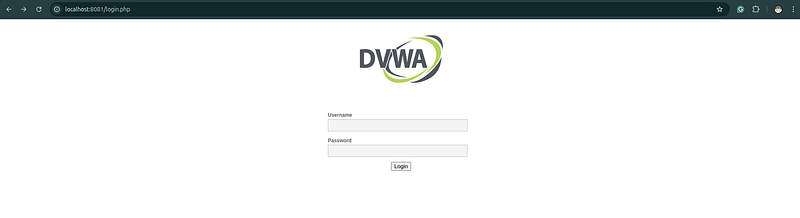
7) Initialize DVWA
Option A — via browser (recommended)
On the host (or via SSH tunnel) open:
http://127.0.0.1:8081/setup.php
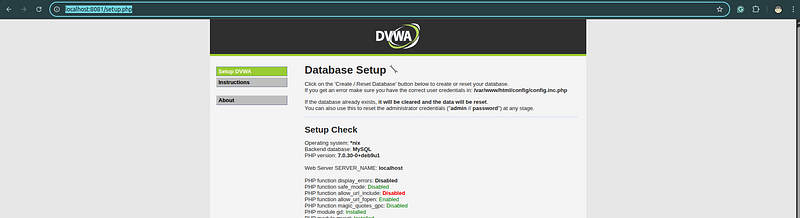
ClickCreate / Reset Database, then go to:
http://127.0.0.1:8081/login.php
Default creds:admin/password(change later).
SSH tunnel example (if remote):
ssh -L
8081
:
127.0
.0
.1
:
8081

ubuntu@
lab.example.com -N
# then
open
 http:
//127.0.0.1:8081 locally
Option B — one-liners (manual, on the host)
sudo docker
exec

-
it dvwa_db bash
-
c \
"mysql -uroot -p'DvwaRootPass123!' -e \"
CREATE
 DATABASE IF
NOT

EXISTS
 dvwa;
GRANT

ALL

ON
 dvwa.
*

TO

'dvwauser'
@
'%'
 IDENTIFIED
BY

'DvwaUserPass123!'
; FLUSH PRIVILEGES;\""
sudo docker
exec

-
it dvwa_app bash
-
c "php /var/www/html/setup.php"
7) Snapshots & backups (recommended)
VM snapshots(VBox/VMware/KVM) before training. Volume backups(bare metal):
# DB
sudo docker run --
rm
 -v dvwa_db:/db -v
"
$PWD
"
:/backup alpine \
  sh -c
"cd /db && tar -czf /backup/dvwa_db_volume_backup.tgz ."
# Web
sudo docker run --rm -v dvwa_html:/data -v "$PWD":/backup alpine \
  sh -c "cd /data && tar -czf /backup/dvwa_html_volume_backup.tgz ."
8) Change DVWA security level
DVWA UI →DVWA Security→ pickLow / Medium / High / Impossible.
9) Cleanup
sudo docker
rm
 -f dvwa_app dvwa_db ||
true
sudo docker volume
rm
 dvwa_html dvwa_db ||
true
sudo docker network
rm
 dvwa_net ||
true
sudo
rm
 -f /root/dvwa_deploy_info_$(hostname).txt ||
true

If you builtlocal/dvwa:latest:
sudo docker rmi
local
/dvwa:latest ||
true
10) Troubleshooting (aligned with final YAML)
-
Timeout on 127.0.0.1:8081:
-
Ensure the network isnon-internal:
docker network inspect dvwa_net | jq '.[0].Internal'→ should befalse -
Check mapping:
docker inspect dvwa_app --format '{{json .NetworkSettings.Ports}}' -
If mapping is
{}: re-run the playbook; it nowrecreatesthe container with ports when missing. -
Ansible complains about
**purge_networks**: Not used anymore. The final YAML removed it for compatibility with oldercommunity.docker. -
PEP 668/“externally managed environment” pip errors: The playbook avoids this on Debian/Ubuntu by installing
**python3-docker**via APT. -
Port already used: Override at run:
-e "dvwa_bind_port=8888"
Summary: From Manual Setup to Full Automation
What we built here is more than just a Docker deployment — it’s acomplete repeatable cybersecurity lab, fully automated with Ansible and container-based isolation. With just one playbook and a few commands, you can stand up a vulnerable web application, database backend, and secure network — then tear it all down cleanly afterward.
This approach has several powerful implications for bothsecurity professionalsandstudents:
-
Consistency and reproducibility— every environment is identical, ensuring training sessions or penetration tests start from a clean, known baseline.
-
Safety by design— the containers run only on
127.0.0.1, never exposed to the public Internet. -
Automation as documentation— the playbook itself becomes a living, executable manual: every installation step is declared, versioned, and auditable.
-
Rapid reset & rollback— by snapshotting containers or volumes, you can return to a pristine vulnerable state in seconds — ideal for ongoing training or demo labs.
-
Extendable foundation— you can evolve this setup into a full cyber-range: add Metasploitable, OWASP Juice Shop, or even simulated attacker nodes, all orchestrated by Ansible.
In short, you’ve automated the entire lifecycle of a vulnerable lab:provision → exploit → reset → repeat.
Final Thoughts
In modern cybersecurity education and red-team research,automation is not a luxury — it’s a necessity. Manually deploying and configuring training environments wastes valuable time and introduces inconsistencies. By embracingInfrastructure as Codethrough Ansible, we ensure that every new lab isdeterministic, safe, and instantly reproducible.
DVWA is only the beginning. With the same pattern, you can:
-
Spin up other vulnerable apps like Juice Shop, Mutillidae, or bWAPP.
-
Add security monitoring (Fluent Bit → XPLG / ELK) to observe attacks in real time.
-
Integrate CI/CD pipelines that automatically test your blue-team detections.
Ultimately, this lab is a reminder thatethical hacking and automation belong together— the better your tools, the faster you learn and the safer you experiment.
Next Steps
If you enjoyed this guide, try one of these follow-ups:
-
Automate DVWA database initialization with Ansible tasks (
community.docker.docker_container.exec). -
Add a Kali Linux container as an “attacker” node.
-
Build a dashboard to visualize attack patterns in real time.
Stay safe, stay curious — and remember:every great red-team engineer automates their lab before they attack it.